Sign in
Purpose
Sign in to the console and find your way around it. New here, without an account? Start with First steps, step 2.
Prerequisites
- An account: your own sign-up (see First steps), or an invitation from an Org Admin of your organisation that you have accepted.
- No subdomain to remember: every organisation uses the same console address, and your account decides which organisation you land in.
Steps
-
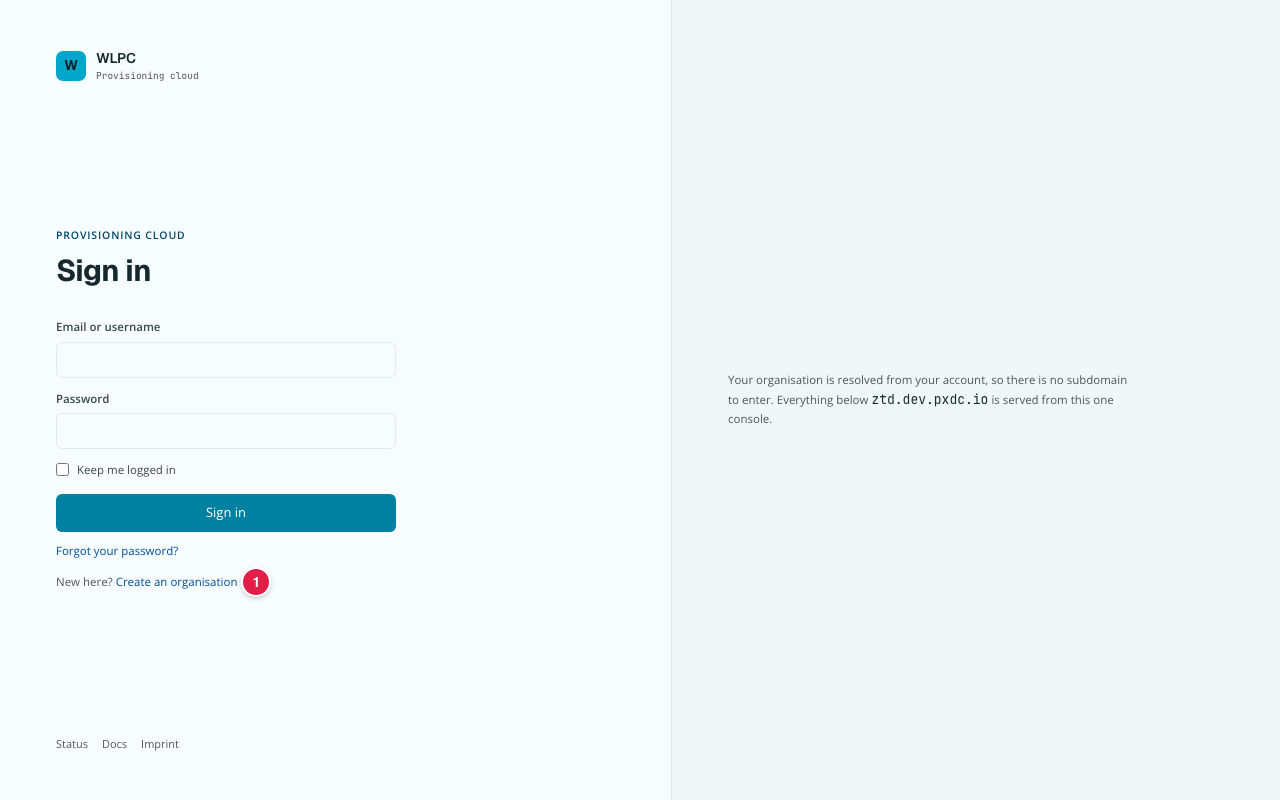
Open the console, enter your Email or username and Password, then click Sign in. Tick Keep me logged in on a computer only you use.
-
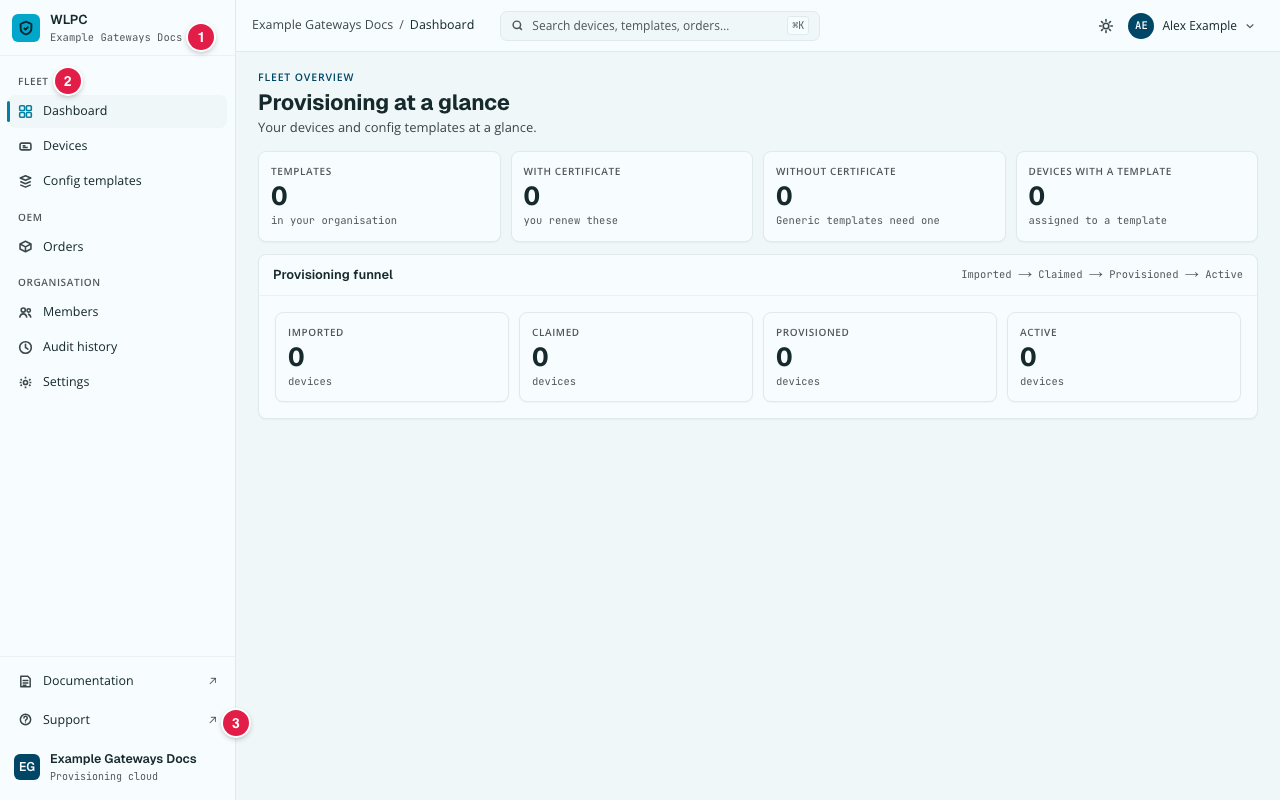
You land on the Dashboard. The menu on the left has three groups:
- FLEET: Dashboard, Devices, Config templates: your own gateways and their settings.
- OEM: Orders: batches of gateways produced for you, and their import.
- ORGANISATION: Members, Audit history, Settings: who has access, what happened, and your company data.
The pages under FLEET show Fleet above their title. Below the groups, Documentation opens these docs, and Support opens the provider's contact page in a new tab.
-
To find a gateway quickly, press Ctrl+K (⌘K on a Mac) and type its EUI or serial number. See Find anything: search.
Expected result
You are on the Dashboard, your organisation's name is at the top left under the logo, and the three menu groups are visible. A member with the role Viewer sees the same menu but cannot change anything.
Common errors
| Message | What to do |
|---|---|
| Email or password rejected, the form stays on the sign-in page | Check for typos. After signing up, click the link in the verification email first, then Confirm email address. Forgot the password? Click Forgot your password?. |
| Invited, but signing in fails | Accept the invitation first: click the link in the email "You've been invited to join …". It works once, for 7 days; after that, ask to be invited again. |
Find anything: search
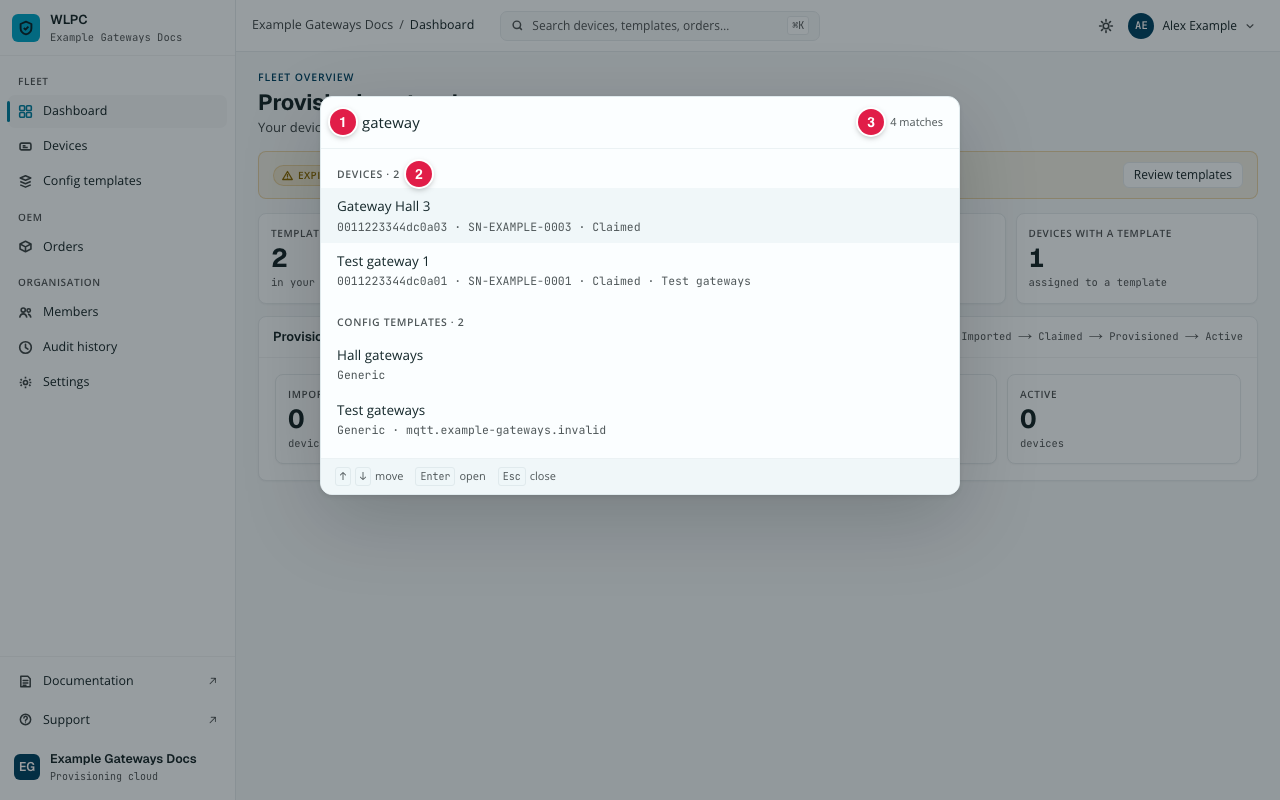
The search box at the top of every page reads "Search devices, templates, orders…". Click it, or press Ctrl+K (Windows, Linux) or ⌘K (Cmd+K, macOS).
- Type at least 2 characters (1). Results appear while you type.
- They are grouped into Devices, Config templates, Orders and Members. Each group shows its count (2), for example "Devices · 9 (showing 6)". The total, for example "12 matches", is at the top right (3).
- Move with the arrow keys and press Enter, or click a result.
What you can search for:
| Kind | Found by |
|---|---|
| Devices | Name, EUI, serial number, template name, status and health |
| Config templates | Name, target platform and broker host |
| Orders | Order number and reference |
| Members | Name and email. Only for roles that may see members (Org Admin). |
Upper and lower case do not matter. For EUIs, serial numbers and order
numbers, separators do not matter either: 001122, 00:11:22 and
00-11-22 find the same device. You only ever see results from your own
organisation. Certificates, keys and other credential material are never
searchable.