Step 2: Sign up and confirm your email
Why this step
Signing up creates your organisation and your own login. You become its first Org Admin.
You need
- An email address you can read right now.
- Your company's name and country. The postal address is optional.
- The console URL and access: you receive them with your customer account.
Do this
- On the sign-in page, click Create an organisation.
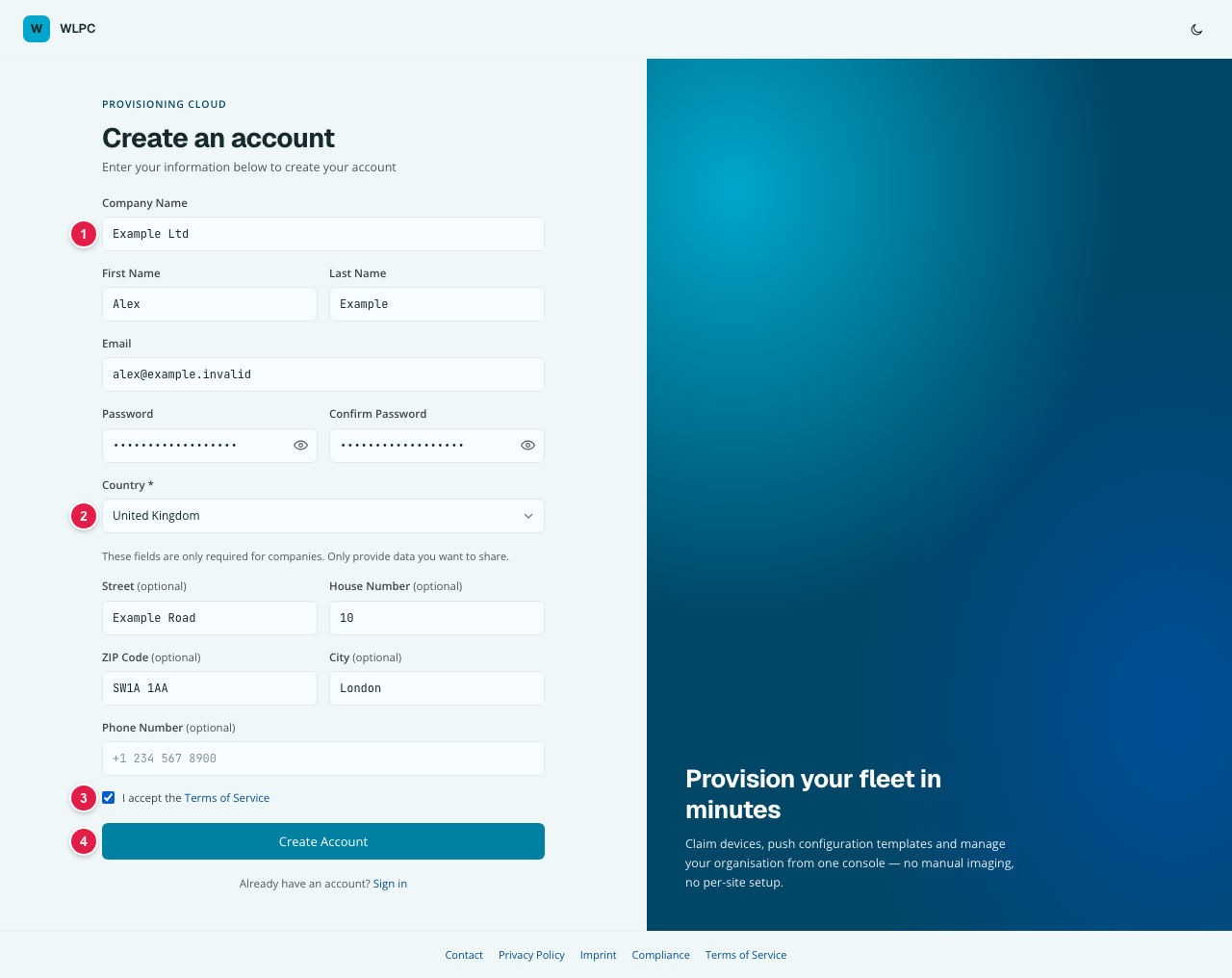
- Fill in Company Name, First Name, Last Name and Email (1).
- Choose a Password of at least 12 characters and type it again in Confirm Password.
- Click Country * (2). A list of countries opens. Scroll to your
country and click it. (Typing the first letters jumps to the first match,
for example
Germfor Germany orUnited Kfor United Kingdom.) Check that the field now shows your country. - Optional: fill in Street, House Number, ZIP Code, City and Phone Number. You can leave them empty and add the address in step 3. If you fill them in, they are copied, with the country, into your company data. Street and house number end up in one line, street first; you can change that in step 3.
- Tick I accept the Terms of Service (3). The blue link opens the text.
- Click Create Account (4).
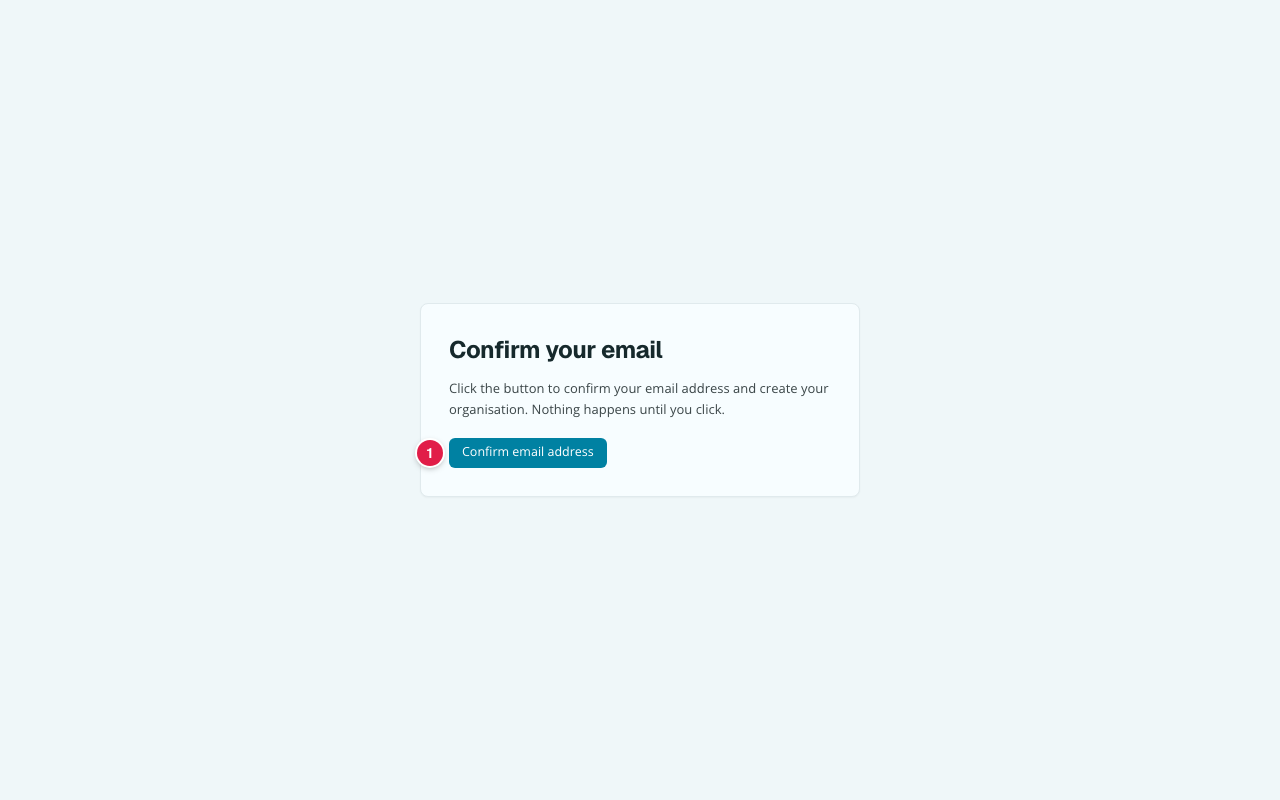
- Open the email with the subject "Verify your email to activate your workspace" and click the link in it. The link works for one hour. A page "Confirm your email" opens. Click Confirm email address (1). Only this click creates your organisation; nothing happens before it.
- Sign in with your email and password, see Sign in.
You should see
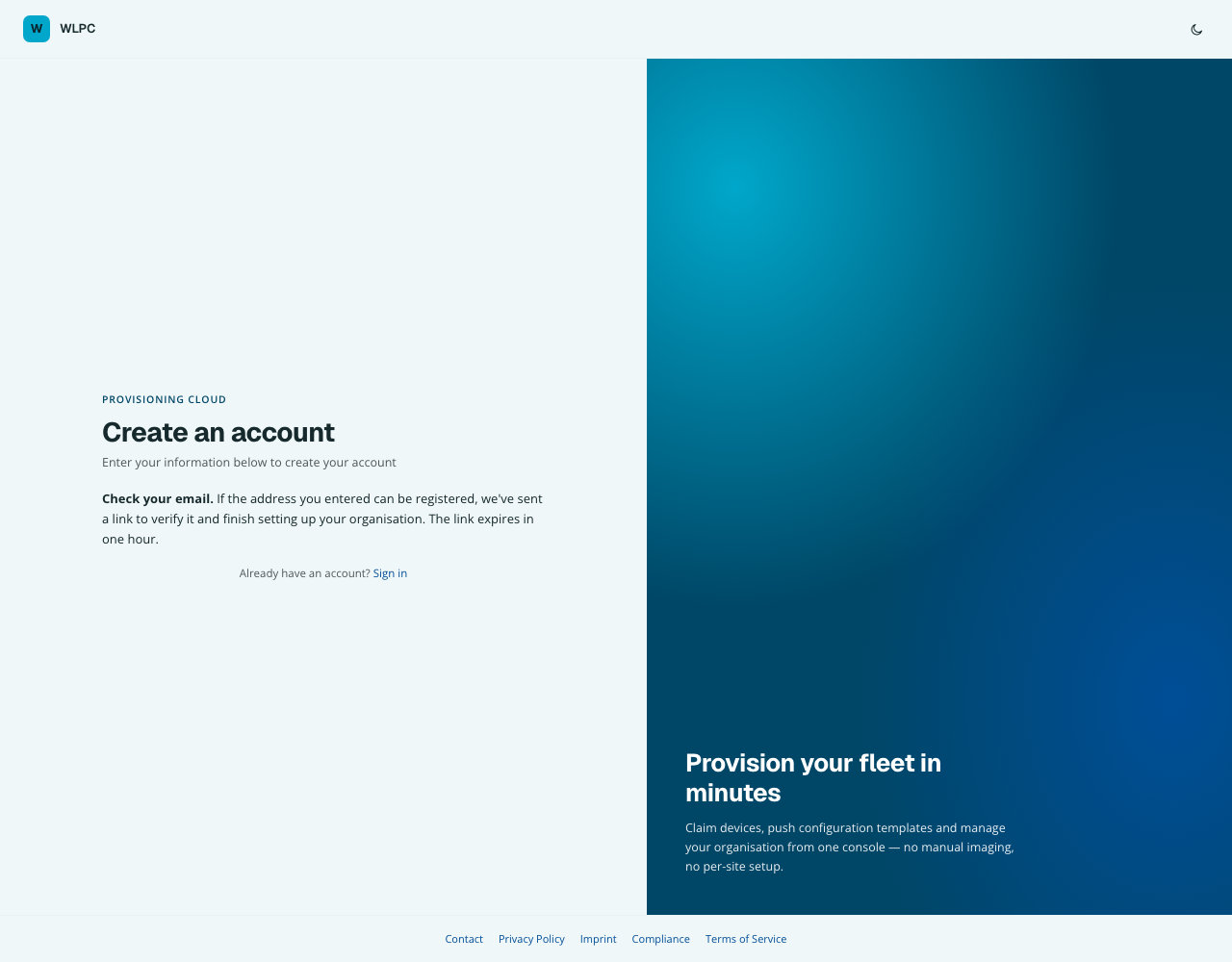
After Create Account, the form is replaced by "Check your email. […] The link expires in one hour."
After clicking the link in the email, the page "Confirm your email": "Click the button to confirm your email address and create your organisation. Nothing happens until you click."
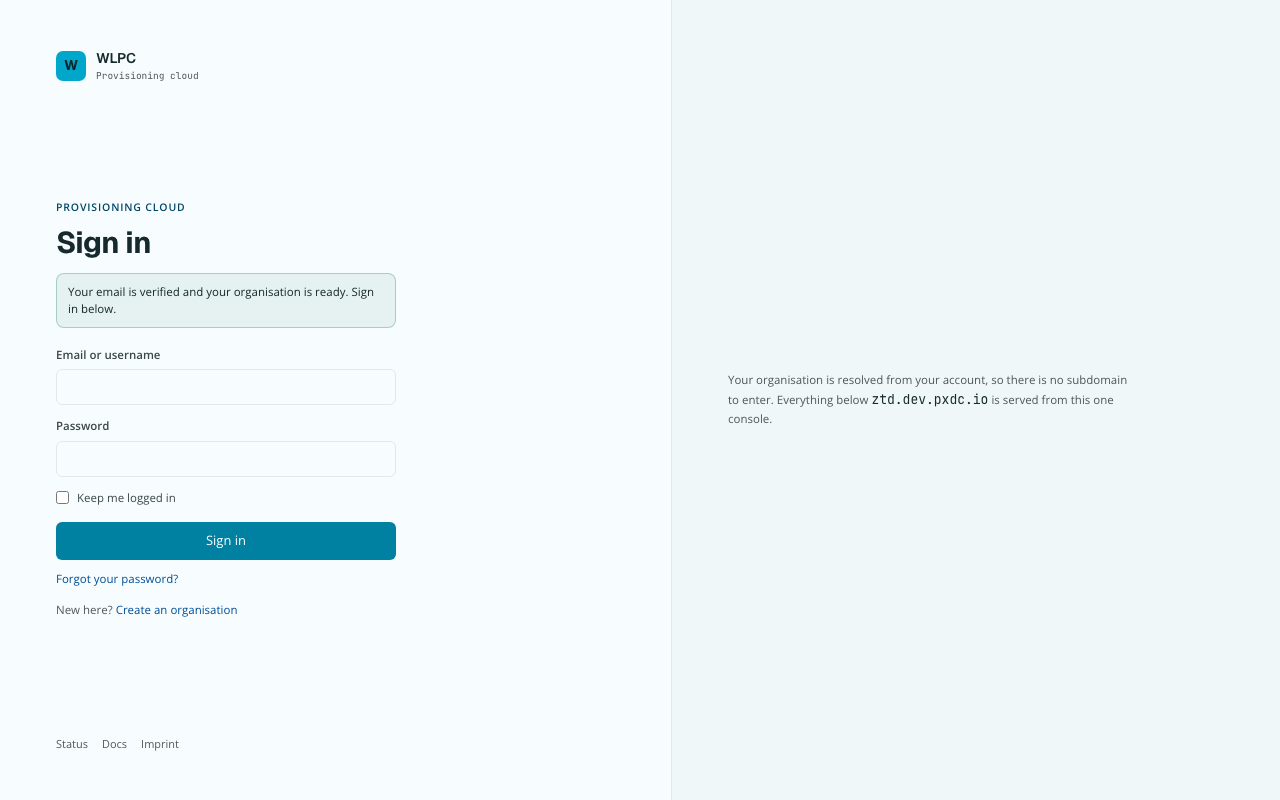
After clicking Confirm email address, the sign-in page says: "Your email is verified and your organisation is ready. Sign in below."
After signing in, the Dashboard with your company name at the top left, see Sign in.
If not
| What you see | What it means | What to do |
|---|---|---|
| "Too many attempts from here. Please wait a moment and try again." | Too many sign-ups came from your network in a short time. | Wait about 20 minutes, then click Create Account again. Your entries stay in the form. |
| "That was fast — please wait a moment and click Create Account again." | The form was sent within a few seconds of opening it. This protects against automated sign-ups. | Wait a moment, then click Create Account again. |
| Create Account does nothing and a field is marked red | A required field is empty or the two passwords differ. | Fill in the marked field. Check that the password has at least 12 characters and is typed the same twice. |
| No email after 10 minutes | The email is delayed, in your spam folder, or the address has a typo. | Look in your spam folder. If it is not there, fill in the form again with the correct address. |
| The link in the email says it has expired or is invalid | More than one hour has passed. | Fill in the sign-up form again. You get a new link. |
| "Email already confirmed — Your email address is already confirmed and your organisation is ready. You can sign in." | You clicked the link or Confirm email address a second time. Your organisation was created the first time. | Click Sign in and sign in. |
| "Check your email" appears, but you already have an account with this address | For your protection the page never says whether an address is already registered. | Sign in with your existing account instead. |
Signing in later: Sign in.