More device actions
What else you can do on a device's page and in the organisation-wide audit history. Open a device's page by clicking its EUI under Devices.
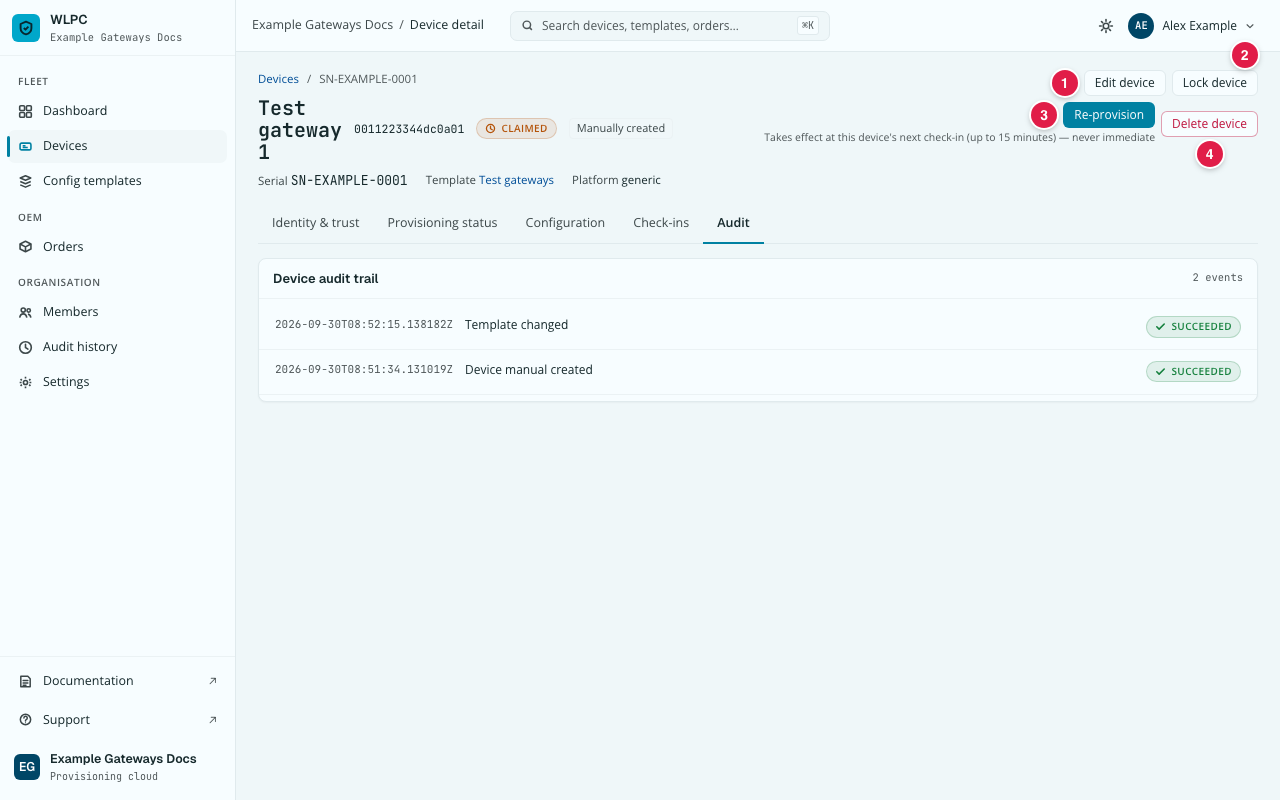
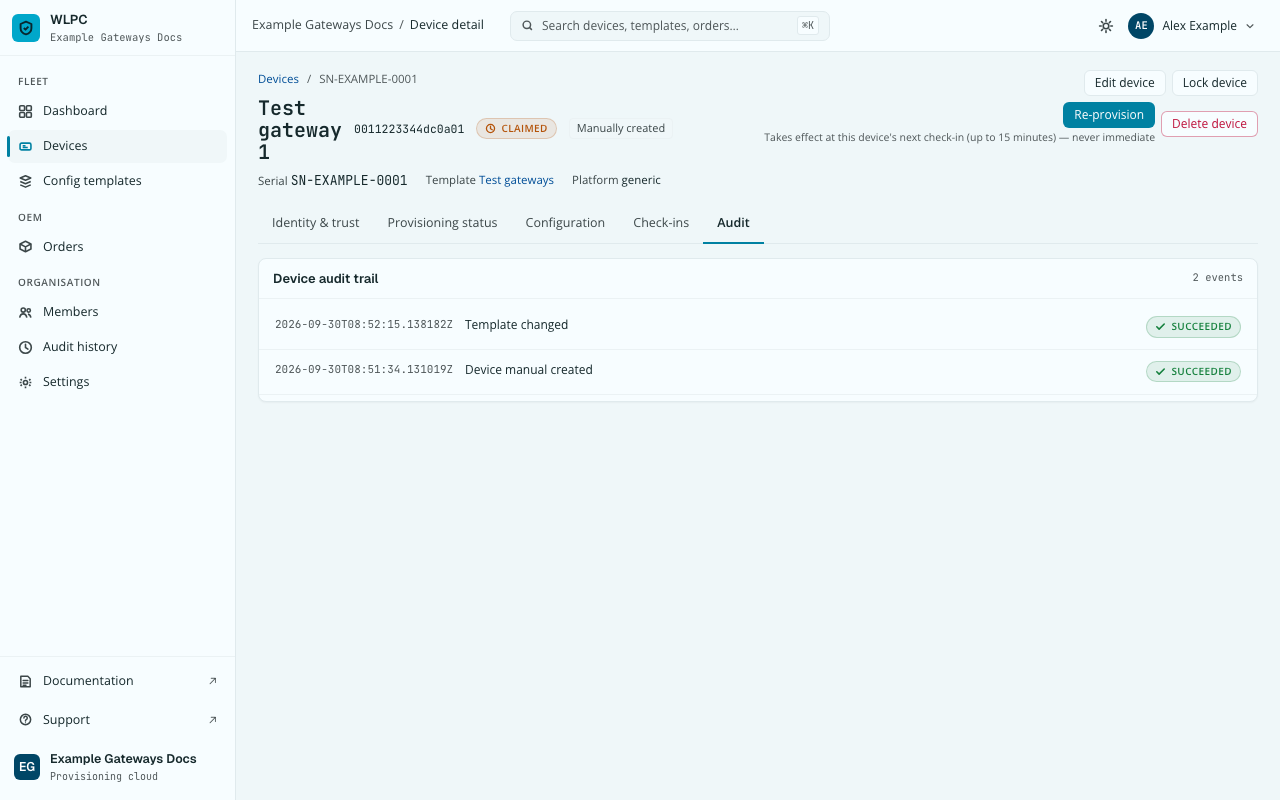
Edit device (1) is described below. Delete device (4) is switched off in production.
Edit device
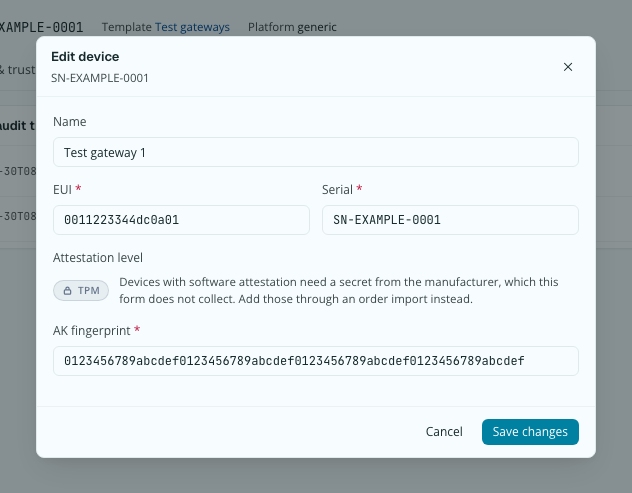
Correct a manually added device's name, EUI, serial or AK fingerprint, for example after a typo. Needs the role Org Admin.
-
On the device page, click Edit device. The dialog shows the current Name, EUI, Serial and AK fingerprint, with the same rules as Add device.
-
Change what you need, then click Save changes. To replace a registered identity certificate or switch to the AK fingerprint, see Register a device's identity.
A device imported earlier with an identifier that is not 16 hex characters
keeps it: its EUI field is read-only; everything else stays editable. A
wrong EUI or AK fingerprint shows the same Value error, ... messages as in
Add device. If you corrected the EUI or AK fingerprint of a gateway the
platform had refused ("device unknown"), restart the agent on the gateway so
it tries again at once: systemctl restart bootstrap-agent.service.
Otherwise it waits up to an hour.
Assign template
A device receives the settings of exactly one template. You assign it on the device's Configuration tab. It needs the role Org Admin or Editor.
- No template yet: the tab says "No template assigned. This device will fail its next bootstrap with TEMPLATE_INVALID until one is." Click Assign template, choose the template in the dialog Assign to template, and click Assign.
- Template assigned: the tab shows it, with Change template to pick another one and Unassign to remove it.
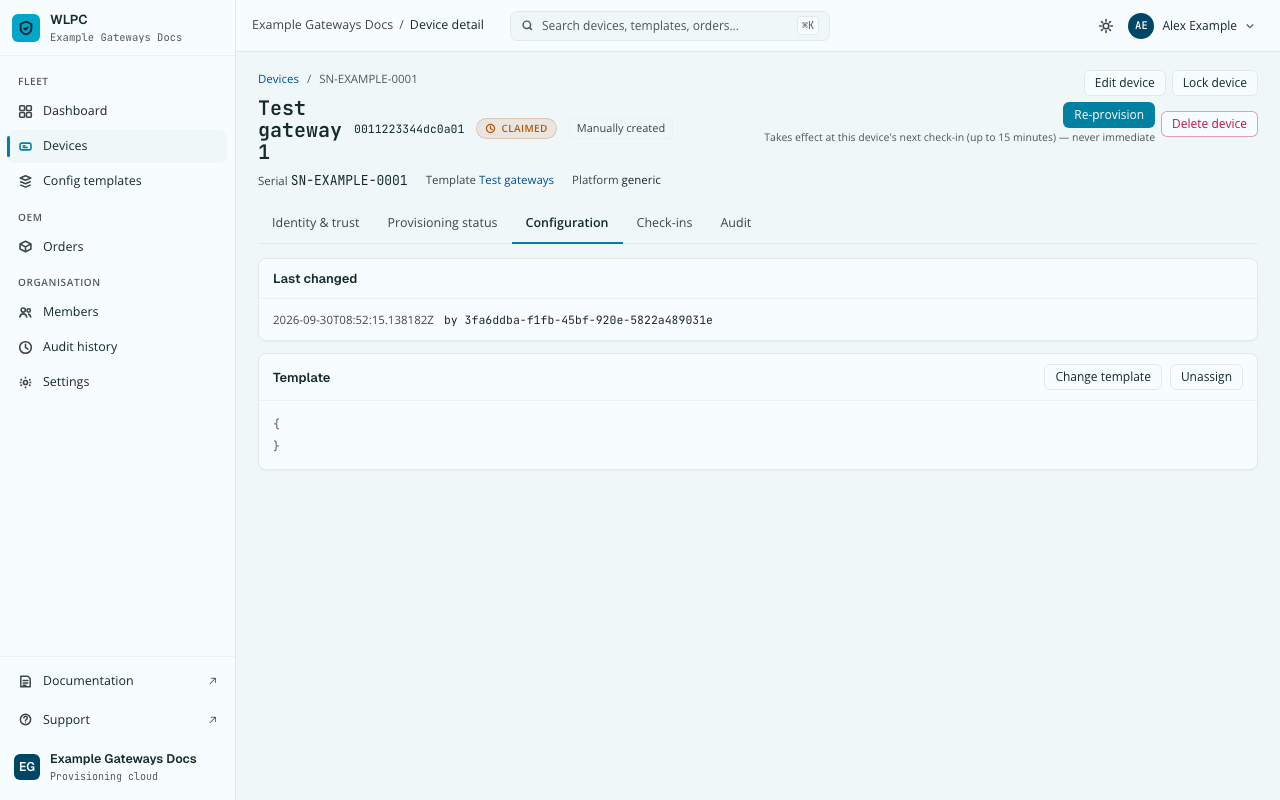
Nothing is pushed to the gateway. The change takes effect at the device's next check-in, as the tab itself says ("Applies at next check-in").
Unassign asks for confirmation first: a device without a template fails
its next check-in with TEMPLATE_INVALID. There is no default template to
fall back to. Unassigning does not delete the template; that is a
separate action, see Delete template.
A Generic template without its credential cannot be assigned. The dialog says so: "This generic-target template has no credential uploaded yet — assigning it here will be refused." See Create template.
Many devices at once: in the Devices list, tick the devices, then click Assign template in the bar that appears ("N selected"). Each device is assigned on its own; one failing does not stop or undo the others.
Pallax target
A device on a Pallax template needs a Pallax workspace and a gateway type
of its own; they belong to the device, not to the template. Where to set them,
and why a template must not contain a _target key, is on
Set the target on the device.
Check-ins
The Check-ins tab lists the gateway's calls to the platform. A call the platform refused may be missing, see Known gaps and limits.
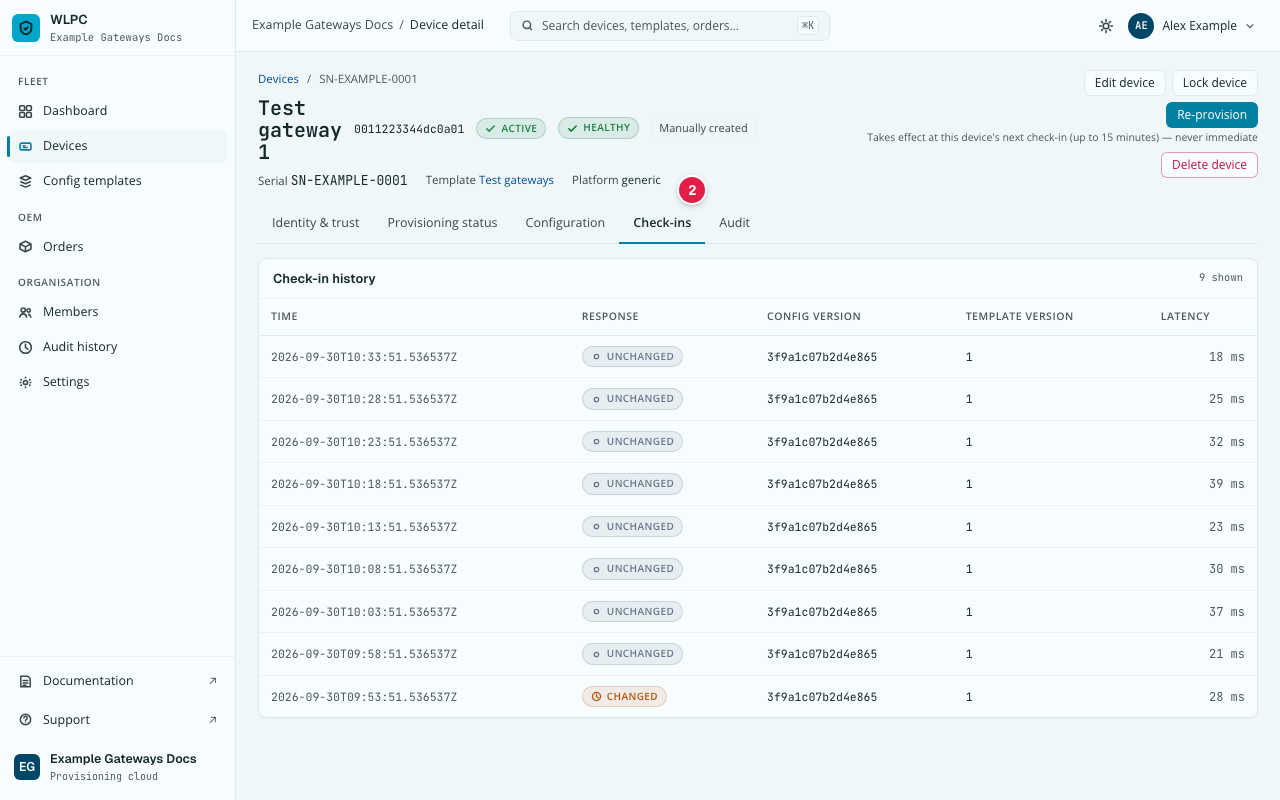
For the last 48 hours, each call is one row: time (UTC), response
(CHANGED when the gateway fetched new settings, UNCHANGED when there was
nothing new, or the refusal code when the call was refused, for example for
a locked device), the configuration version the gateway reported, the
template version, and how long the answer took. A gateway that calls every
hour shows about 24 rows a day.
Older calls are summed up under Before that, one row per day: number of calls, how many changed something, how many failed, and the first and last call of the day. The individual rows are then deleted; the daily summary stays.
Nothing else from the gateway is stored here: no certificates, no keys, no IP addresses.
Re-provision
Re-provision makes the platform send the device its complete settings
again at its next check-in. It is disabled unless the device's status is
PROVISIONED or ACTIVE ("Only a provisioned or active device can be
re-provisioned").
Nothing is pushed to the gateway: the device notices at its next check-in, never immediately. By default a device checks in once an hour, so it can take up to an hour. The console shows a fixed hint of 15 minutes in places; it does not follow the interval.
One hour is a default, not a limit
A template can set check_in_interval_seconds to a whole number of
seconds from 300 (5 minutes) to 86400 (24 hours), like any other key; a
value outside that range is refused when the template is saved. The device
then calls in at that interval. heartbeat_seconds, if you see it in a
template, is a different setting for your gateway software; it does not
change how often the device calls the platform.
Lock device
Lock device (2) blocks the device on purpose: its status becomes
LOCKED, and the platform refuses the gateway when it calls in. A refused
call may not appear in the console, see
Known gaps and limits. Changing a device's lock
needs the role Org Admin.
Certificate actions (Generic templates)
On Config templates, a template with a credential shows a strip with Replace certificate and Remove:
- Replace certificate opens the upload dialog, see Create template.
- Remove asks "Remove this credential?" with Confirm remove and Cancel. After removing, devices using this template fail their next check-in until a new credential is added.
Removing or replacing a credential deletes its private key from storage. Nothing of the old key is kept.
Audit history
Two places show what happened:
- Per device: the Audit tab on the device's page.
- Organisation-wide: Audit history in the menu, with a filter.
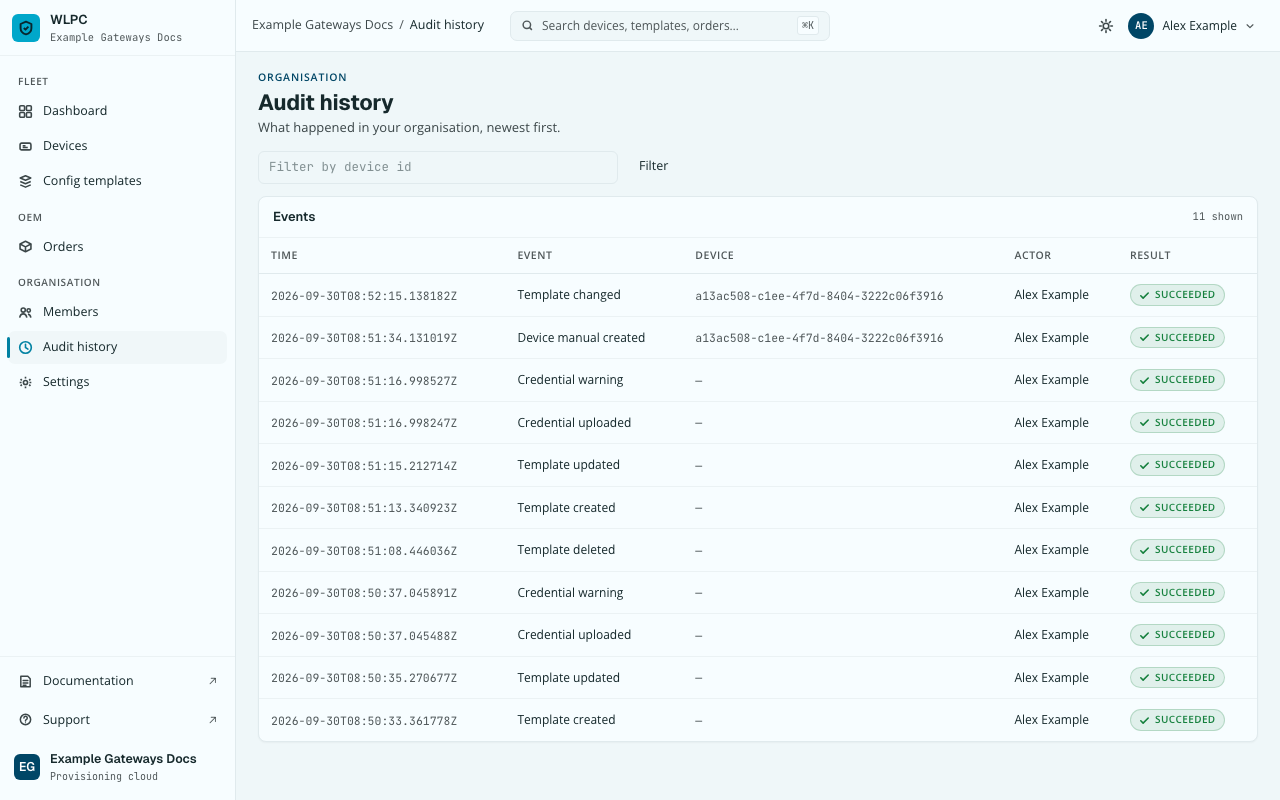
Times are in UTC. The ACTOR column shows who acted: a member's name (or email), System for actions the platform performs by itself, or Former member for someone who is no longer part of your organisation. See Actor.