Edit or delete a template
Purpose
Change a template's keys, target platform, or name.
Prerequisites
- Signed in, with Config templates (menu group FLEET) open. The page shows Fleet above its title.
- Editor role or above.
- The template already exists (see Create template).
Steps
Edit keys
-
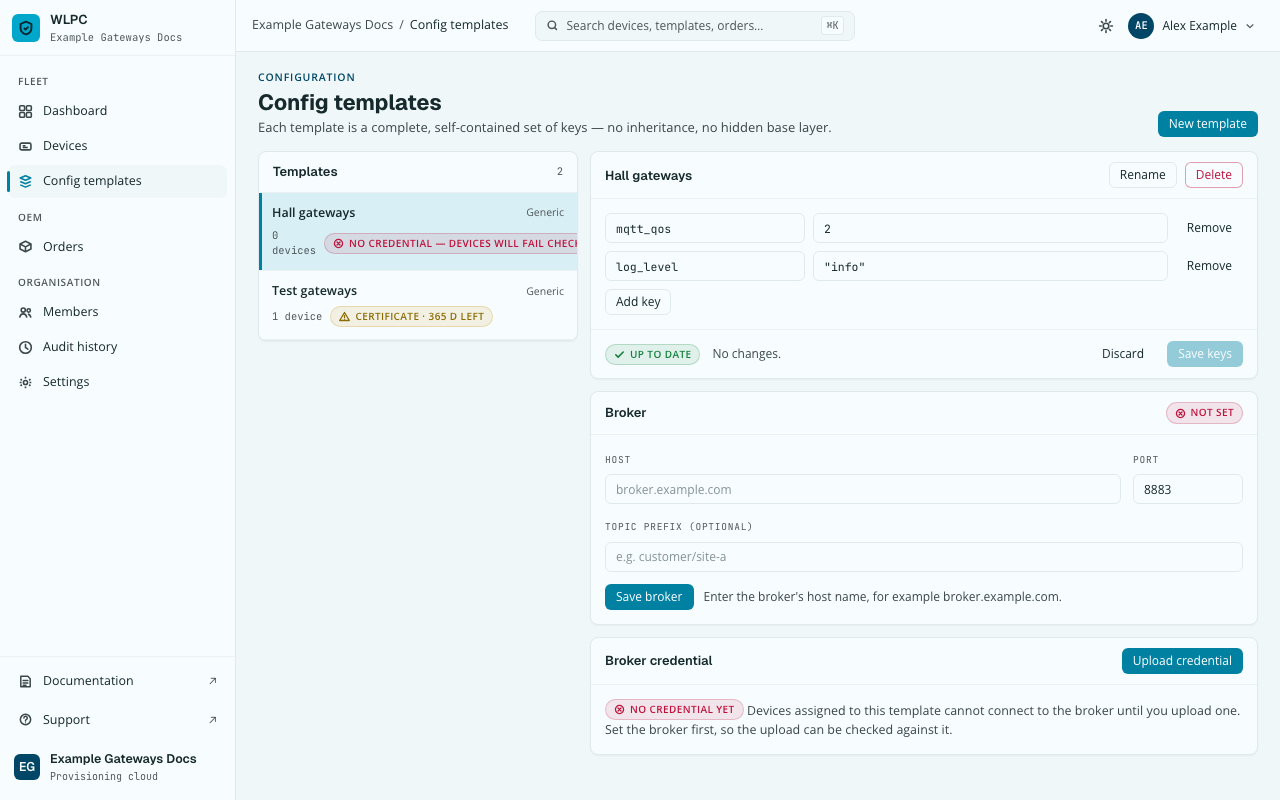
Go to Config templates and select a template from the Templates list. The editor shows a plain key/value table — every key this template sets, one row each. There is no inheritance view: a flat template has nothing beneath it to merge with, so what you see here is the whole configuration.
-
Edit a value: change it in its row. Values are JSON, not raw text — a string needs its own quotes (
"info", notinfo).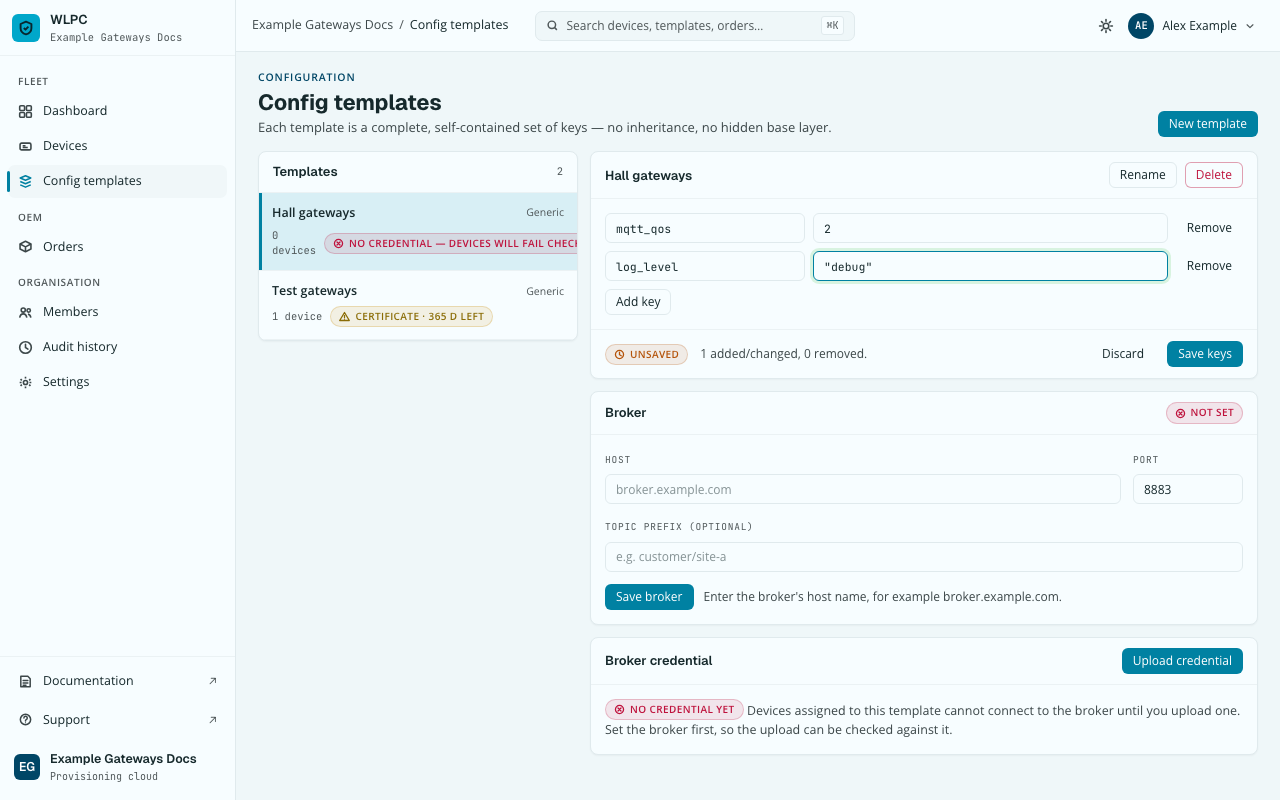
-
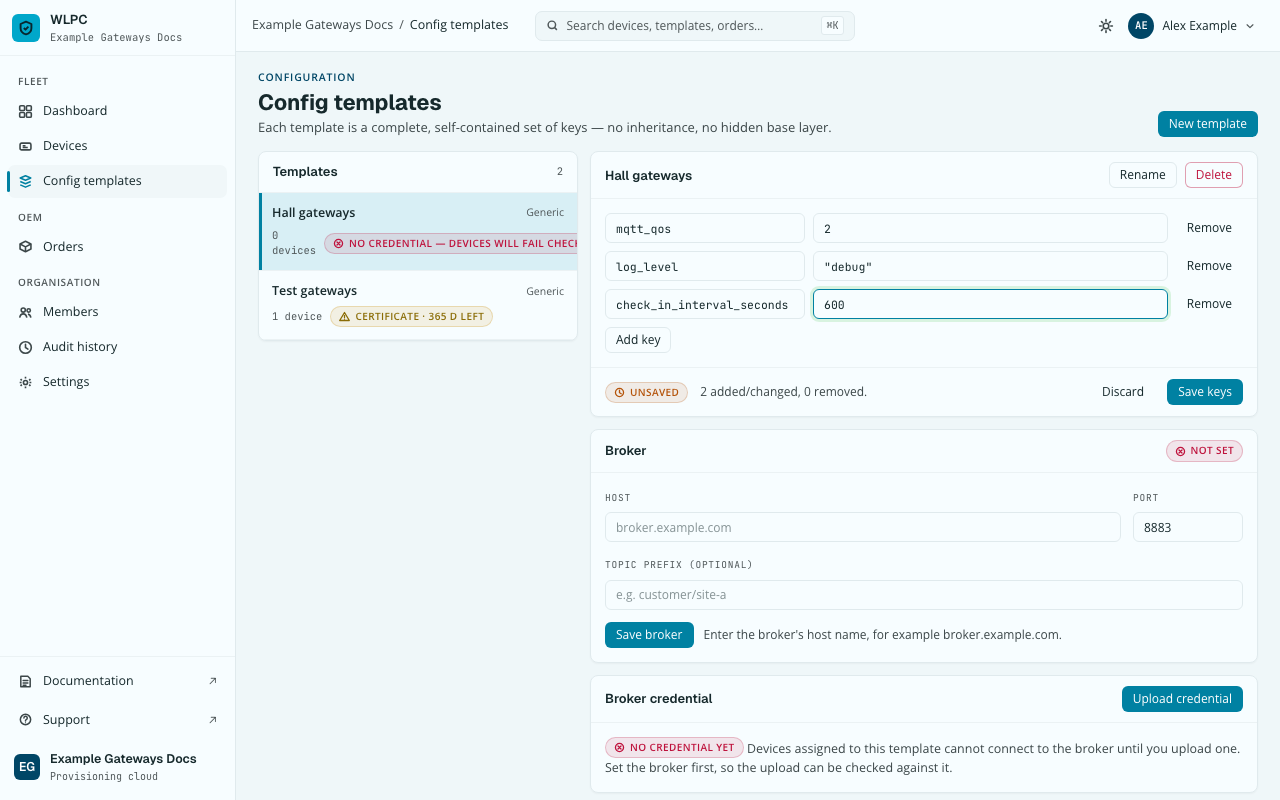
Add a key: click Add key, enter a name and a JSON value. Remove a key: click the row's remove action.
-
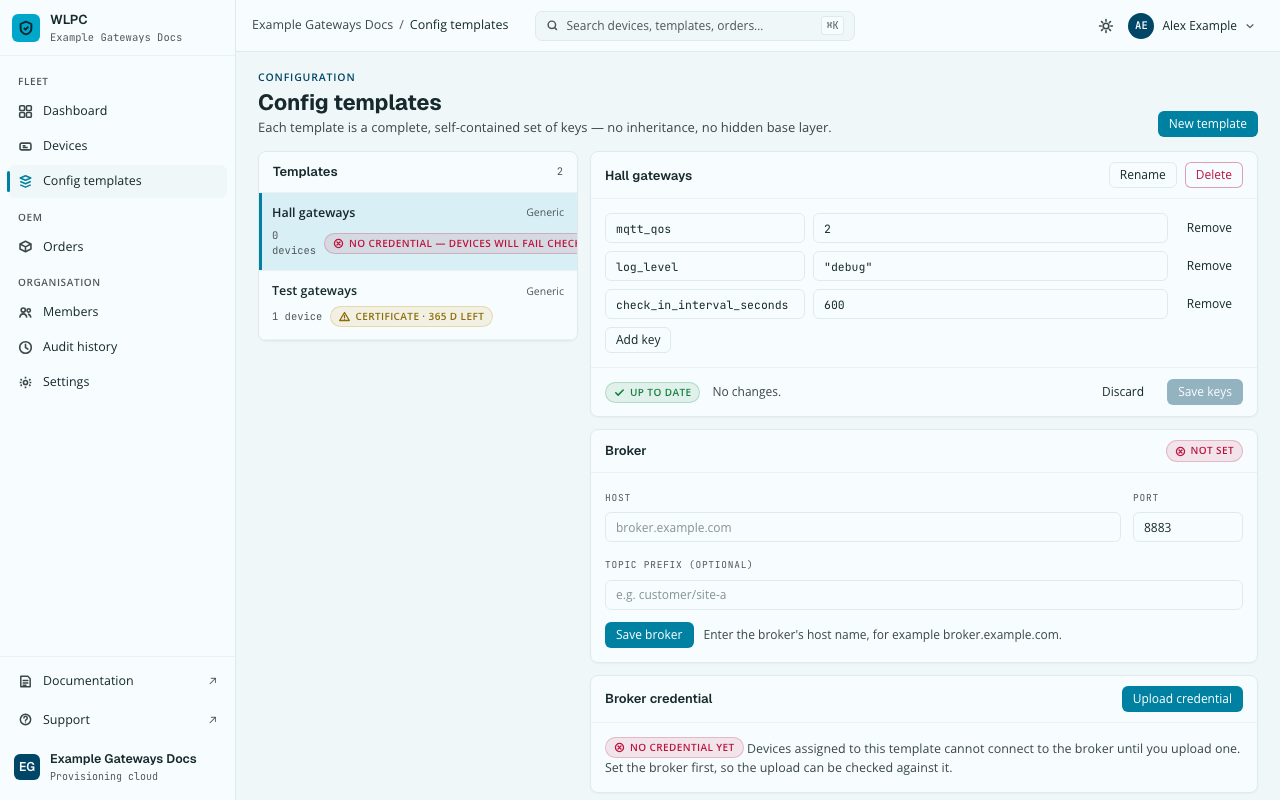
Click Save keys.
Rename
-
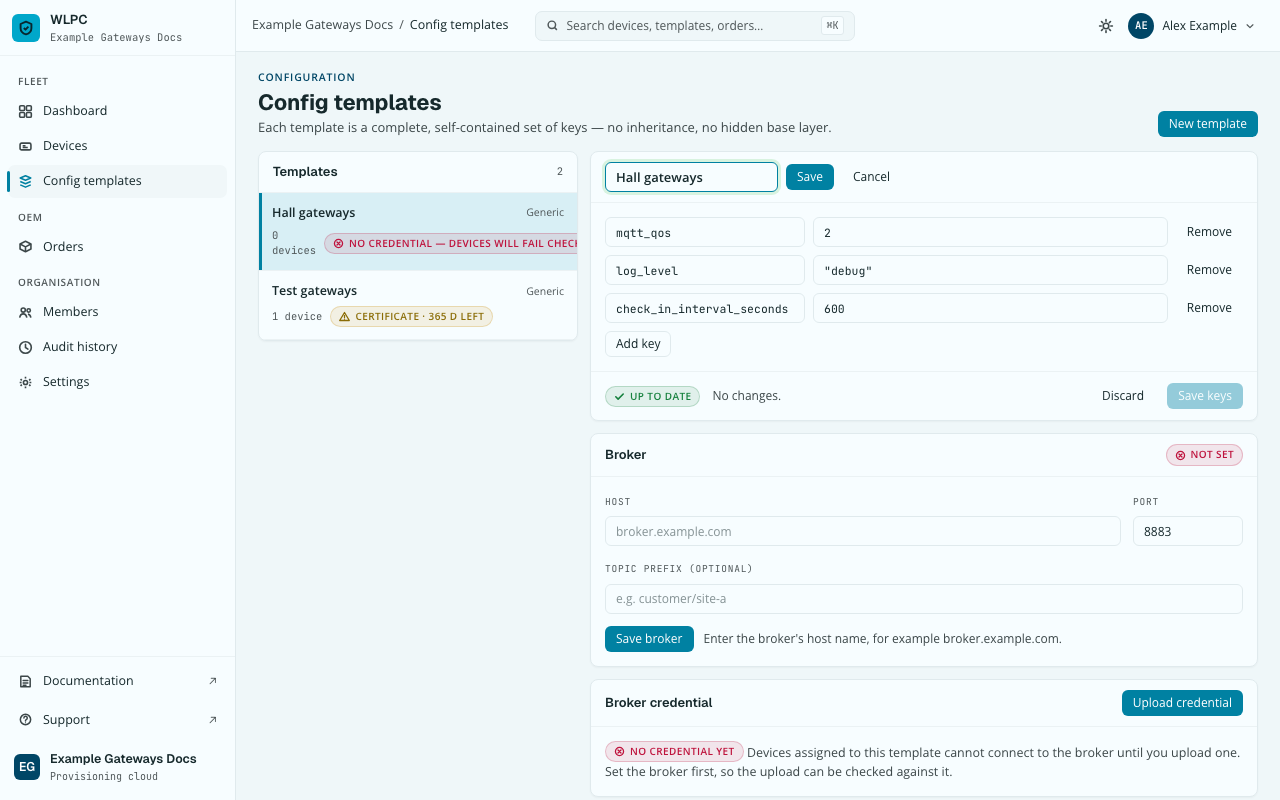
From the same template's editor, click Rename. The name becomes an inline editable field with its own Save/Cancel.
-
Enter the new name and click Save.
Renaming is a separate action from editing keys — the two are audited and versioned independently, so a rename never accidentally rewrites keys and a key edit never accidentally renames the template.
Expected result
The Templates list's Devices column already tells you the exact
blast radius before you edit anything: it is the number of devices
currently assigned to this template, no more and no fewer — every one of
them, and only them, picks up the edit on its next check-in. There is no
separate preview step: a flat template's assigned devices are its own
device_count, not something that needs resolving.
Common errors
| Exact UI message | What to do |
|---|---|
NAME_TAKEN (409) |
On rename: another live template in this organization already has that name. Pick a different one. |
| "Every key needs a unique name and a valid JSON value." / Save keys stays disabled | A value isn't valid JSON — a bare word needs quotes to be a JSON string ("value", not value), and a duplicate key name is refused. |
Delete a template
Permanently remove a template that is no longer needed. You need the role Editor or higher, and no device may still be assigned to the template.
-
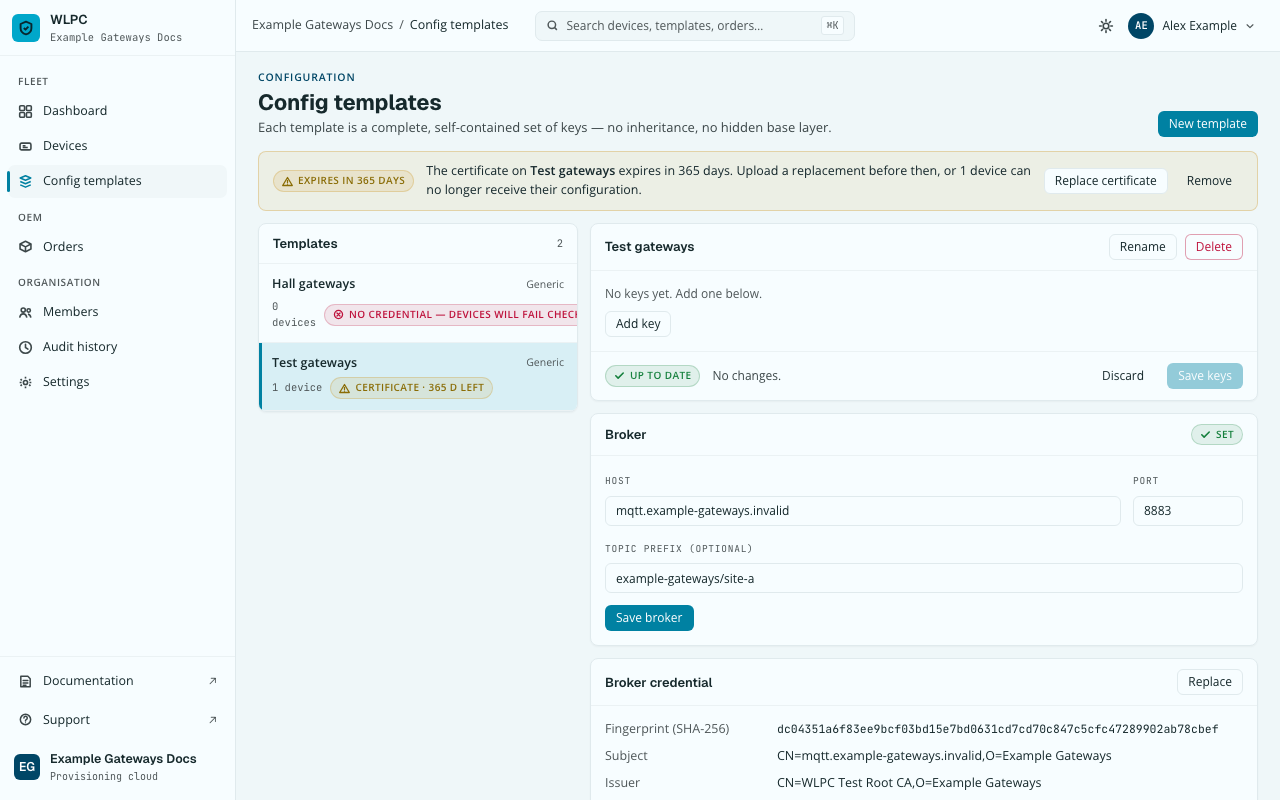
Go to Config templates and select the template to remove. The Templates list shows how many devices are currently assigned.
-
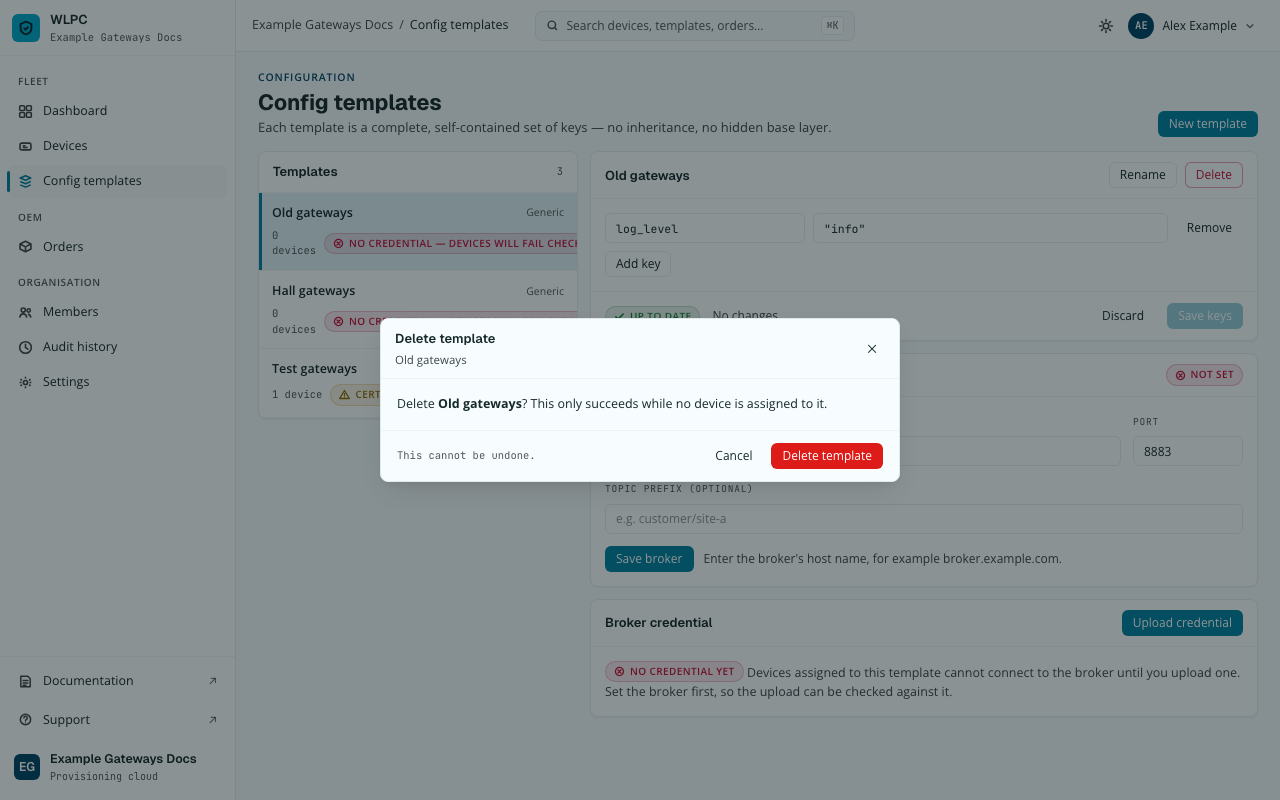
Click Delete.
-
Confirm by clicking Delete template.
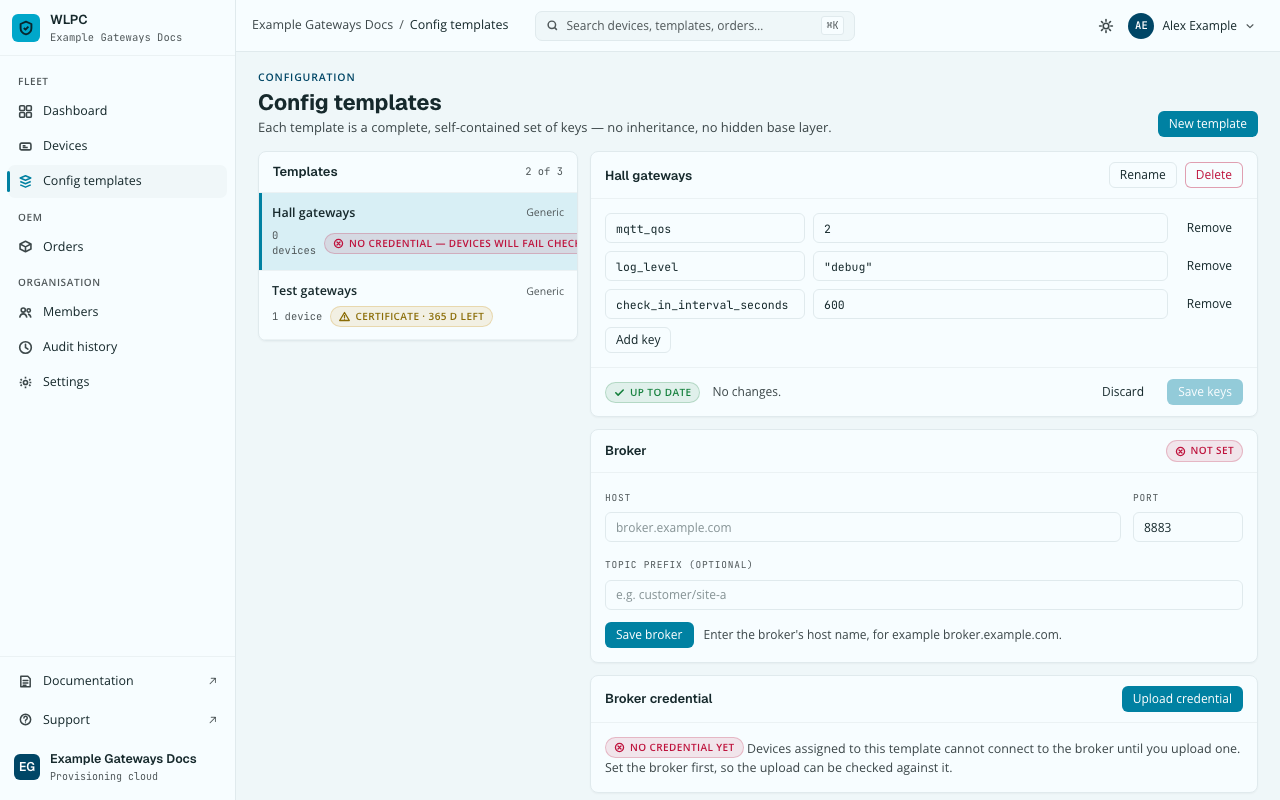
The template disappears from the Templates list, and its name is free for a new template to reuse.
If devices are still assigned, the delete is refused:
| Exact UI message | What to do |
|---|---|
REFUSED cannot delete: N device(s) are still assigned to this template |
The dialog lists the devices by name and EUI. Find each one under Devices, open its Configuration tab and Unassign it (or assign it to a different template), then delete. There is no cascade: a delete never silently drops a device's configuration. |
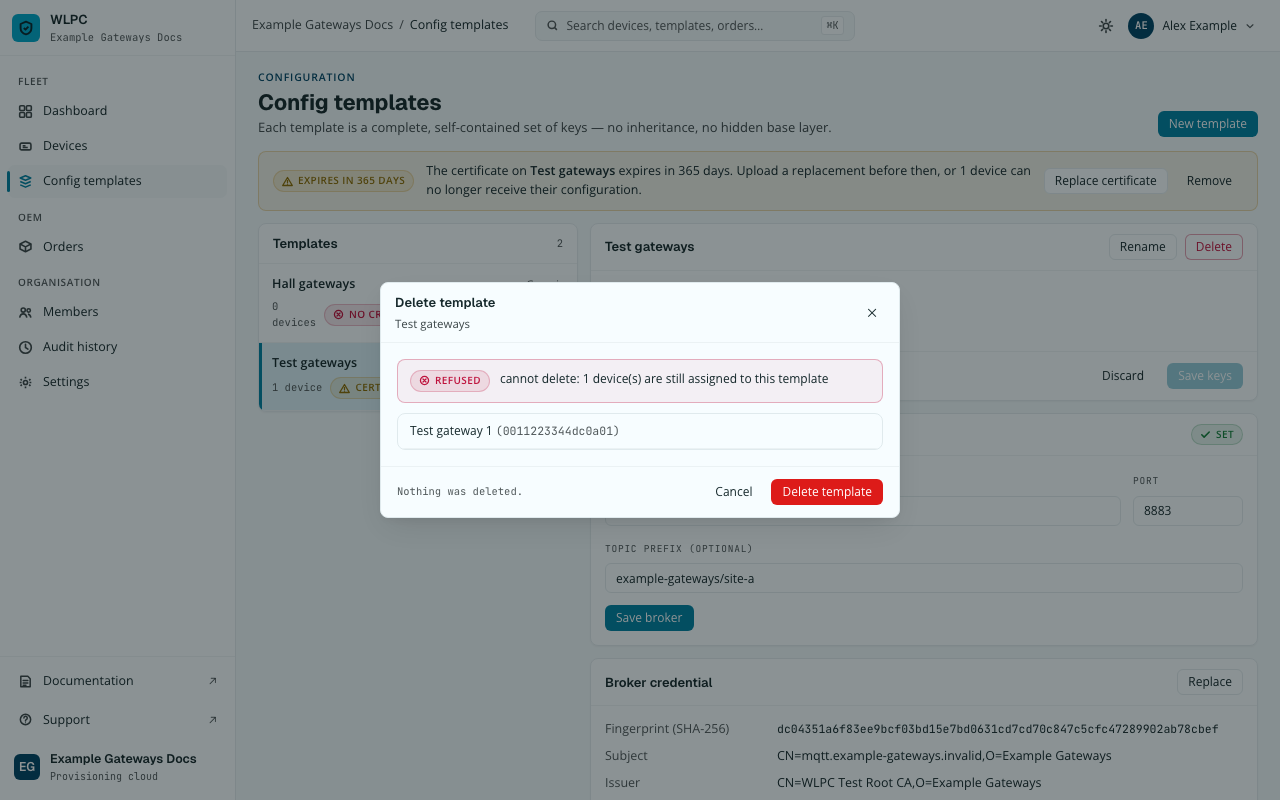
Unassigning a device only clears its pointer; the template stays until you delete it, and the delete is blocked while anything still points at it.