Create template
Purpose
Create a config template. A template is a complete, self-contained set of settings: there is no tier, no inheritance and no base layer. Everything a device receives is in the one template assigned to it.
Prerequisites
- Signed in, see Sign in.
- The role Org Admin or Editor.
- Your target platform:
- Pallax: your Pallax workspace ID and gateway type (
lorawanormioty). Ask support if you do not have them. You enter both on each device, not in the template, see Pallax target. - Generic: from your broker's operator, the broker's host name and port, and the three files of the credential: the client certificate, its private key (not password-protected) and the CA chain.
- Pallax: your Pallax workspace ID and gateway type (
Steps
-
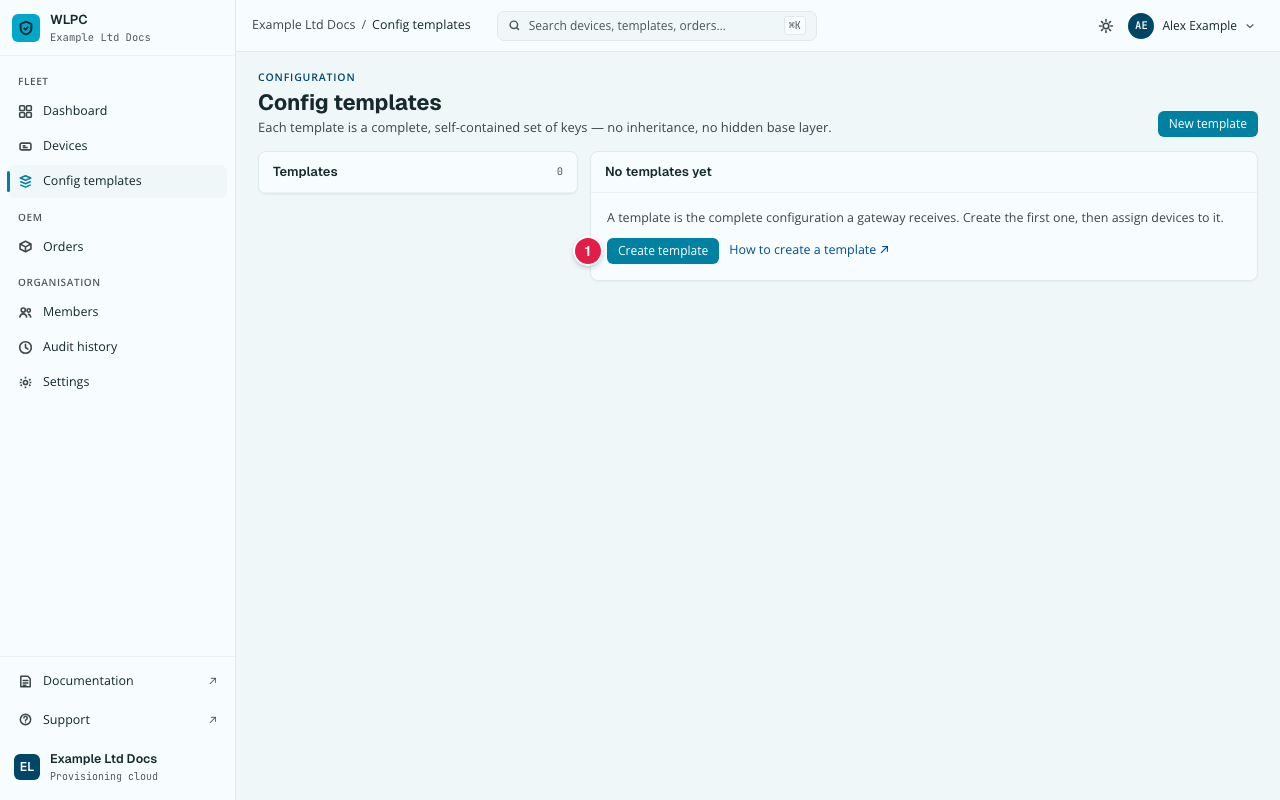
Go to Config templates. With no templates yet, click Create template; otherwise click New template at the top right.
-
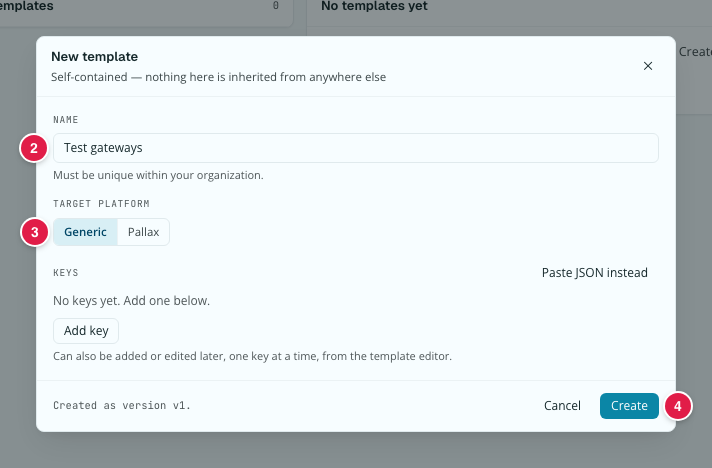
In the New template dialog, enter a NAME, unique in your organisation. It is the label every other screen shows for this template.
- Under TARGET PLATFORM, click Generic or Pallax.
- Optional: add settings under KEYS. Click Add key, enter the key's
name and its value as JSON (text in quotes:
"info"; numbers without:300). Or click Paste JSON instead, paste one JSON object with all keys, and click Apply to rows. Keys can also be added later, one at a time, in the template editor (see Edit template).- For Pallax, add no
_targetkey: the Pallax workspace and gateway type belong to each device and are set there, see Pallax target. The console refuses to save a Pallax template that contains_target.
- For Pallax, add no
-
Click Create.
-
For Generic only: set the broker and upload the credential, as described in the next two sections.
Set the broker (Generic only)
-
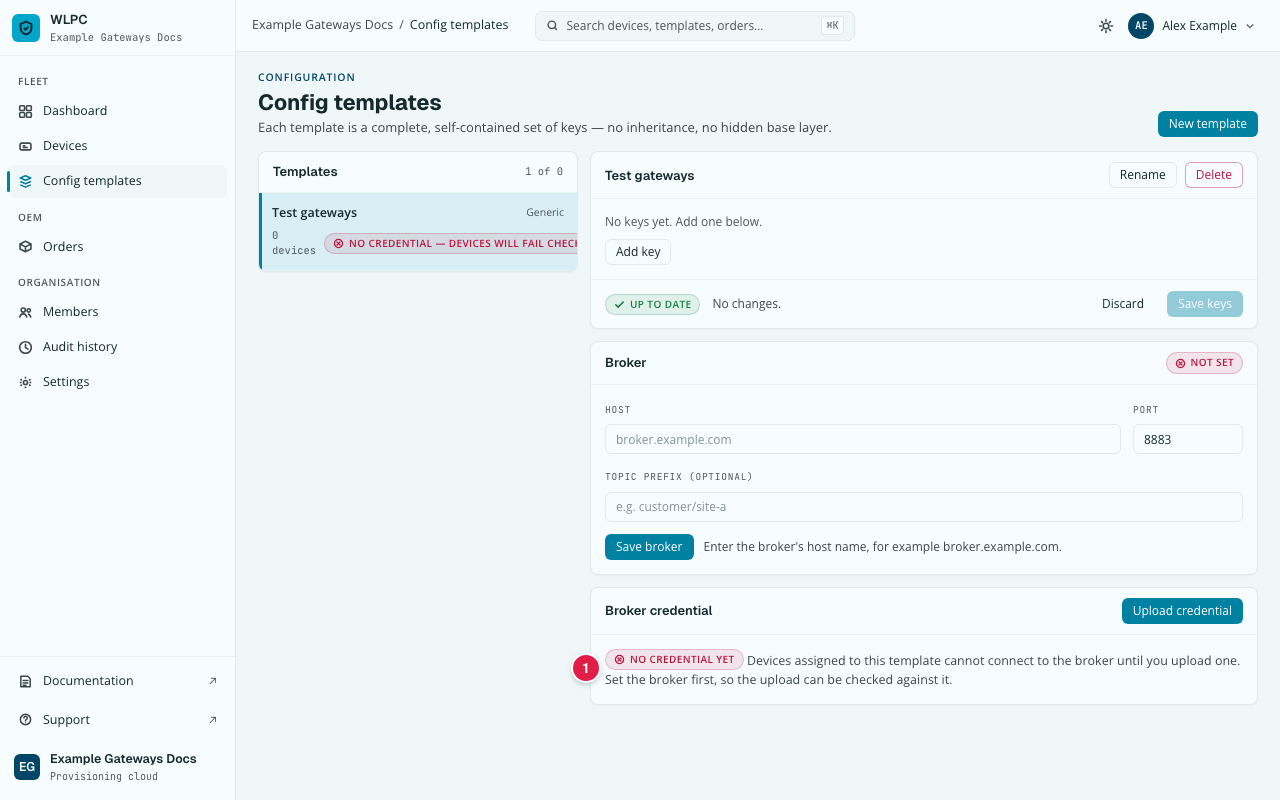
In the Templates list, click your new template. Below its keys you see two cards: Broker and Broker credential. The credential card says No credential yet (1).
-
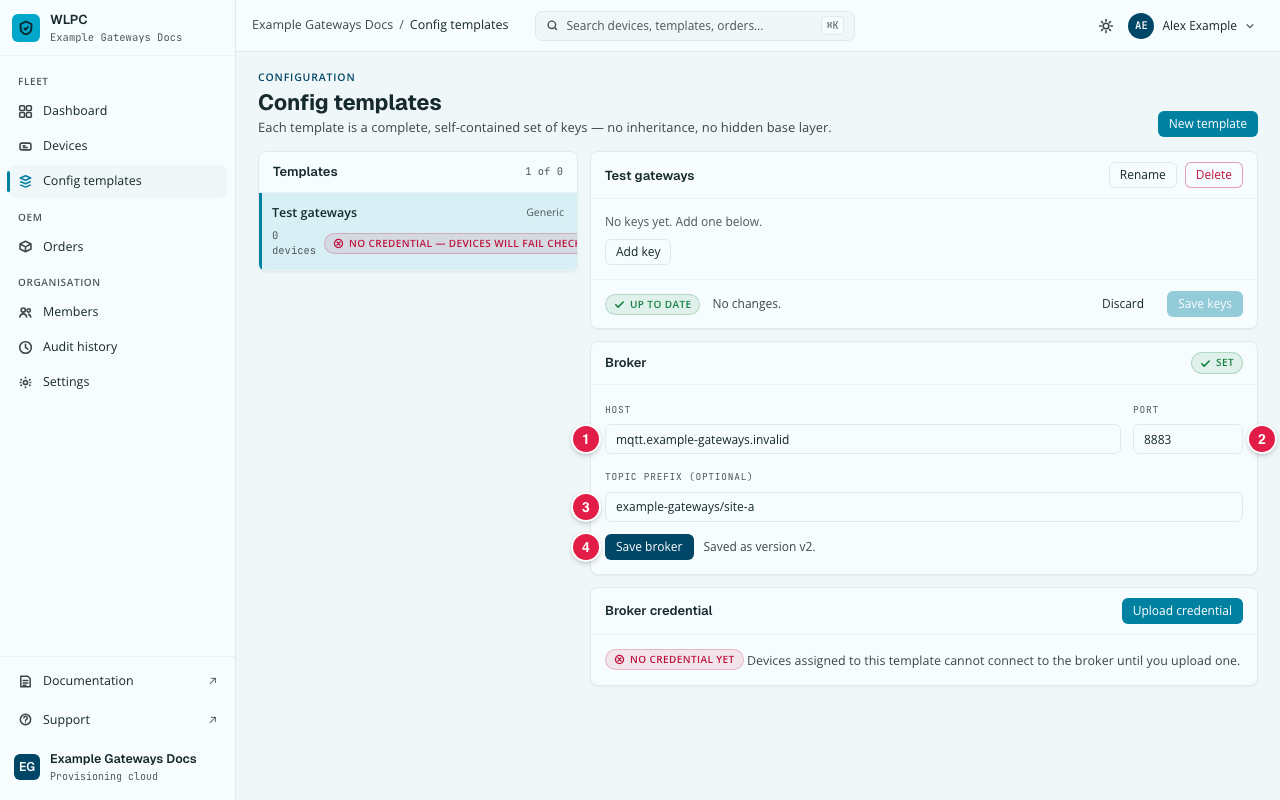
In the Broker card, enter the Host (1), for example
broker.example.com. Type the host name only: nomqtts://in front and no:8883after it. - Check the Port (2). It is preset to
8883, the usual port for MQTT over TLS. Change it only if your broker's operator gave you another one. - Optional: enter the Topic prefix (optional) (3), for example
customer/site-a, if your broker's operator gave you one. Otherwise leave it empty. - Click Save broker (4). Next to the button: "Saved as version vN."
Upload the credential (Generic only)
- In the Broker credential card, click Upload credential. The dialog "Upload credential — " followed by your template's name opens, at "Step 1 of 3".
- The dialog lists the three files you need. Click I have the files.
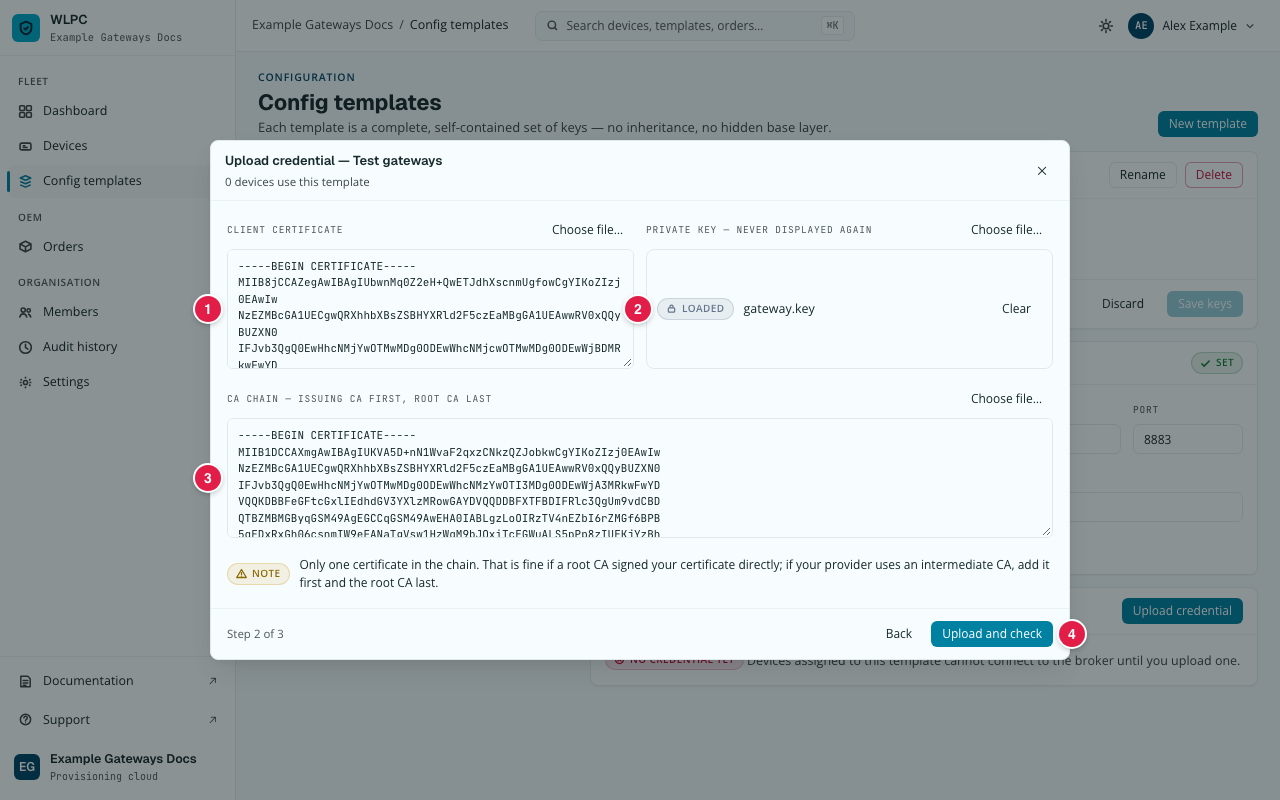
- Fill in the three boxes: Client certificate (1), Private key — never displayed again (2) and CA chain — issuing CA first, root CA last (3). For each box, click Choose file… and pick the file (.pem, .crt, .cer, .key or .txt), or paste the text of the file into the box. A key chosen as a file shows only its file name and "Loaded"; Clear removes it.
- Read any note that appears under a box before you go on (see Common errors).
- Click Upload and check (4). It stays grey until all three boxes are filled.
Expected result
The dialog closes and the new template appears in the Templates list
with its target platform and 0 devices. It is not attached to anything
until you assign it to a device, see
Assign template.
The badge under the name shows the credential:
| Badge | Meaning |
|---|---|
| No credential — devices will fail check-in | A Generic template without its credential yet. Assigning it to a device is refused until you upload the credential (step 6 above). |
| No credential on record | A Pallax template. It needs no credential of its own. |
| Certificate · N d left | The template has a credential that expires in N days. A strip at the top of the page offers Replace certificate (see below). |
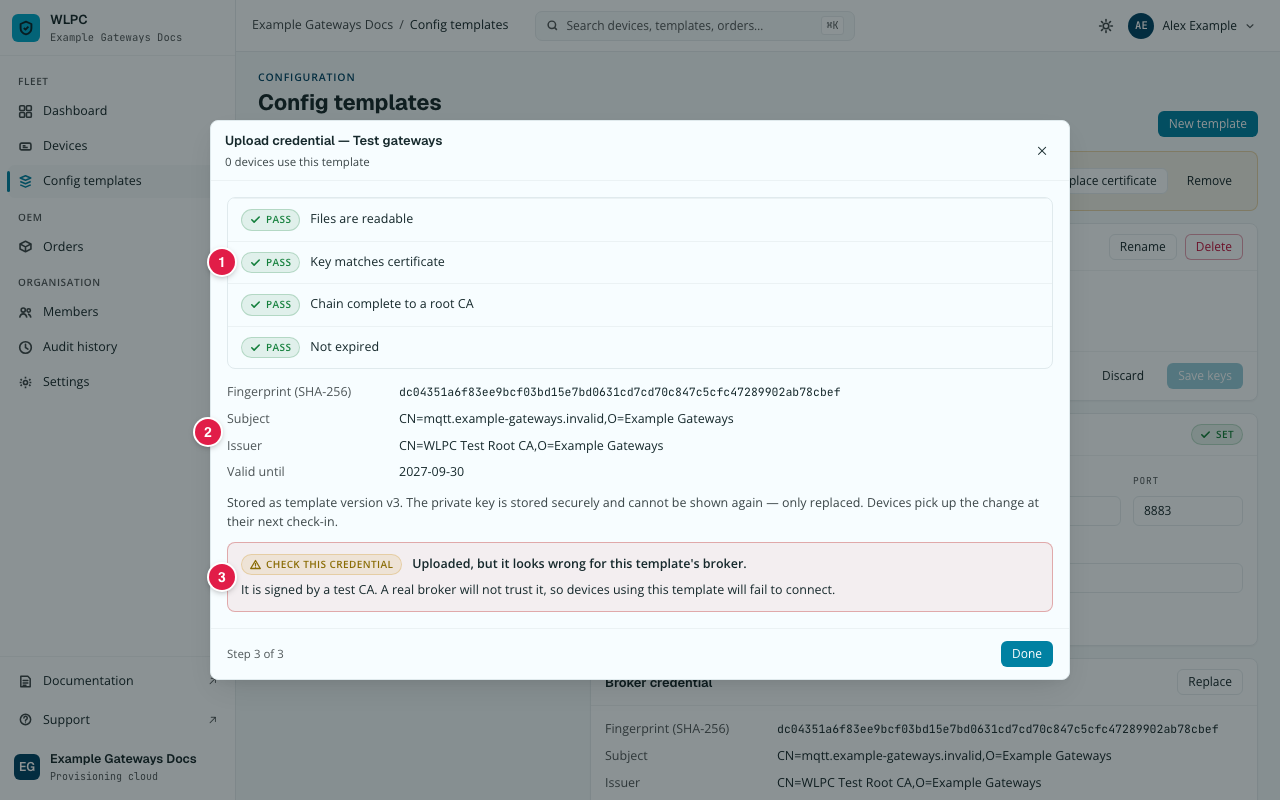
For Generic, after Upload and check, "Step 3 of 3" with four checks (1): Files are readable, Key matches certificate, Chain complete to a root CA and Not expired. Each says Pass or Fail.
When all four pass, the dialog shows the certificate's Fingerprint (SHA-256), Subject, Issuer and Valid until (2), and: "Stored as template version vN. The private key is stored securely and cannot be shown again — only replaced. Devices pick up the change at their next check-in." Click Done. If a red box "Check this credential" (3) appears, the upload is stored anyway, but see Common errors.
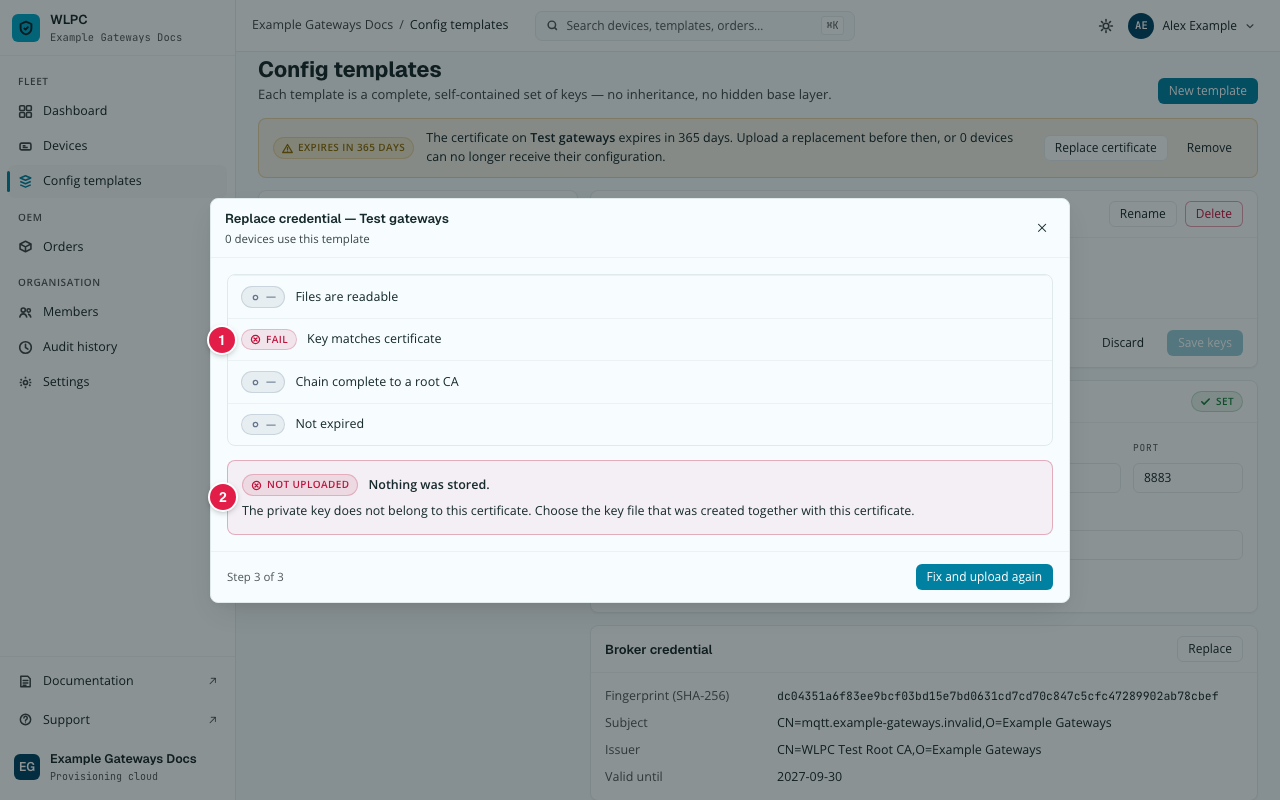
When a check fails, the dialog says "Not uploaded" and "Nothing was stored." The failed check is marked (1), and one sentence says what is wrong (2). Find that sentence under Common errors, fix the file, and click Fix and upload again.
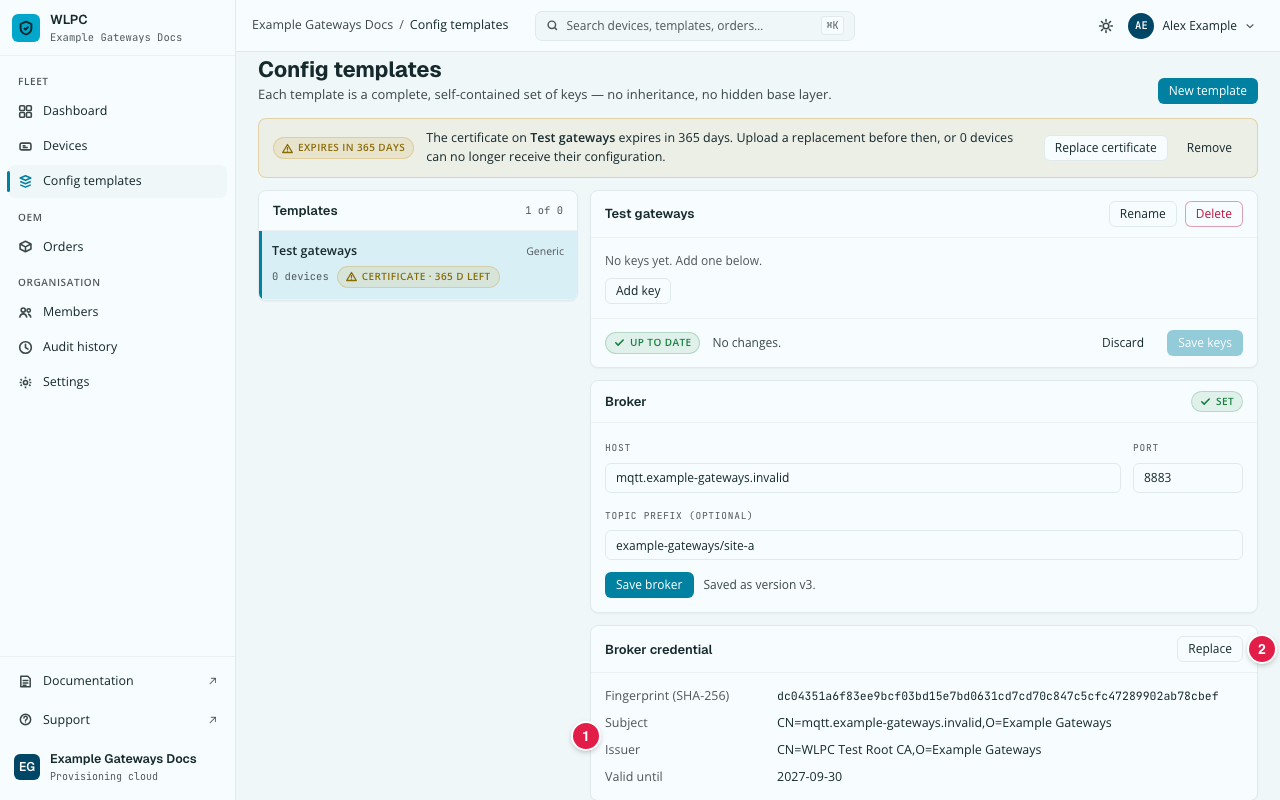
After Done, the Broker credential card shows the certificate's facts (1) and one action, Replace (2). The private key is never shown. In the Templates list, "No credential — devices will fail check-in" is gone. The template is ready to be assigned, see Assign template.
Replacing the certificate
A credential on a Generic template expires, usually after a year. With an expired certificate, gateways using the template cannot be set up. Before that, get the new certificate from your broker's operator and click Replace in the template's Broker credential card (or Replace certificate on the strip at the top of Config templates, shown when the certificate is close to expiry). The dialog has the same three steps as the first upload: the files, the three boxes Client certificate, Private key — never displayed again and CA chain — issuing CA first, root CA last, and the four checks. The current credential stays in use until the new one passes every check. The private key is never shown again after the upload. Once the new credential is in place, the old one's private key is deleted from storage; nothing of it is kept.
Before expiry, Config templates shows the warning "The certificate on … expires in N days. Upload a replacement before then, or N devices can no longer receive their configuration."
After the upload, the platform checks whether the certificate fits this template's broker. If a red box "Check this credential" appears, see Common errors.
Common errors
When creating the template
| What you see | What it means | What to do |
|---|---|---|
NAME_TAKEN (409) |
A template with this name already exists in your organisation. | Choose another name, or edit the existing one, see Edit template. |
| Create stays grey | The name is empty, or an entry under KEYS has no name or an invalid value. | Enter a name. Check the keys: text values need quotes, for example "info". |
| "Every key needs a unique name and a valid JSON value." | A value is not valid JSON (text needs quotes), or two keys have the same name. | Correct the value. Do not add a _target key to a Pallax template: the target is set on the device. |
| "Must be valid JSON." / "Must be a JSON object, e.g. {}." after Apply to rows | The pasted text is not one JSON object in curly brackets. | Paste one JSON object, for example {"log_level": "info"}. |
| There is no Create template or New template button | Your role is Viewer. | Ask an Org Admin for the role Editor. |
When setting the broker
Next to Save broker:
| What you see | What it means | What to do |
|---|---|---|
| "Enter the broker's host name, for example broker.example.com." | Host is empty. | Enter the host name your broker's operator gave you. |
| "Enter the host name only, for example broker.example.com. The port has its own box." | Host contains more than the name, for example mqtts:// in front or :8883 after it. |
Delete everything except the host name. Put the port into Port. |
| "The host name can contain only letters, digits, dots and hyphens." | Host contains another character, for example a space or an underscore. | Check the host name for typos and remove the character. |
| "The port must be a number from 1 to 65535. MQTT over TLS usually uses 8883." | Port is empty, or not a number in that range. | Enter the port your broker's operator gave you, usually 8883. |
| "The topic prefix cannot contain # or +." | # and + are wildcards and are not allowed in a prefix. |
Remove them, for example customer/site-a. Or leave the box empty. |
When uploading the credential
"Ask" below means: ask your broker's operator.
| What you see | Cause and fix |
|---|---|
| "Set the broker first, so the upload can be checked against it." | No broker yet. Set the broker, then click Upload credential. |
| Upload and check stays grey | A box is empty. Fill in all three. |
| "That looks like a private key, not a certificate." | Boxes swapped. One file per box: certificate, key, chain. |
| "More than one certificate here — this field is the leaf certificate only." | The file also holds CA certificates. Keep only the first under Client certificate; paste the rest into the CA chain box. |
| "Only one certificate in the chain. […]" | A note only; you can upload. With an intermediate CA, add it first and the root last. If a root CA signed directly, go on. |
| Files are readable: Fail, "The certificate box / key box / CA chain box does not hold a readable …" | Wrong content or format. Choose the file again. If it still fails, ask for the certificate as text starting with -----BEGIN CERTIFICATE----- (a key: -----BEGIN, naming a PRIVATE KEY). |
| Files are readable: Fail, "The private key is password-protected." | Not usable. Export it without a password, upload again. |
| Files are readable: Fail, "The certificate uses a key type that is not supported." | Only RSA and EC work. Ask for such a certificate. |
| Key matches certificate: Fail, "The private key does not belong to this certificate." | Not a pair, for example an old key with a new certificate. Choose the matching key. |
| Chain complete to a root CA: Fail, "The CA chain does not start with the CA that signed your certificate." | Put the issuing CA first, or ask for it. |
| Chain complete to a root CA: Fail, "The CA chain is in the wrong order." | Issuing CA first, root CA last. |
| Chain complete to a root CA: Fail, "The CA chain is incomplete: the root CA is missing." | Add the root CA certificate at the end. |
| Not expired: Fail, "The certificate has already expired." / "A certificate in the CA chain has expired." | Ask for a new certificate, or a current CA chain. |
| Red box "Check this credential", "It is signed by a test CA. […]" | A test certificate: stored, but real brokers reject it. Get the real one, click Replace. |
| Red box "Check this credential", "The certificate names a different host than this template's broker. […]" | Stored anyway. Check Host in the Broker card for typos. If right, ask for this broker's certificate and click Replace. |
| "No credential — devices will fail check-in" after an accepted upload | Old page data. Reload. |