Step 8: First boot and check
Tested on a lab gateway, not on a Yocto image
This step is written from test runs on a lab gateway with an unsigned lab build of the agent. It has not been run on an image built with the Yocto recipe.
Why this step
This is the moment the platform sets up the gateway: it checks the gateway's identity, sends the settings from your template, and your gateway software starts.
You need
- Steps 5, 6 and 7 done: a template with its credential, a device with that template assigned, and the agent installed.
Do this
-
Start the gateway, or, if it is already running, restart the agent:
-
Wait a few minutes.
- In the console, open Devices and click the device's EUI.
- Click the Provisioning status tab.
What happens, and how long it takes
- The gateway checks its clock and proves its identity with its TPM.
- The platform finds the device by its AK fingerprint and sends the
settings. The status changes from
CLAIMEDtoPROVISIONED. - Your image starts your gateway software when the settings are stored. Once
it is connected to its target platform and has written the confirmation
marker, the agent reports it and the status changes to
ACTIVE, see Start your software and confirm.
If the platform refused the gateway earlier, for example because you switched it on before adding the device, the agent waits one hour before it tries again. Restart it (point 1) to try at once.
You should see
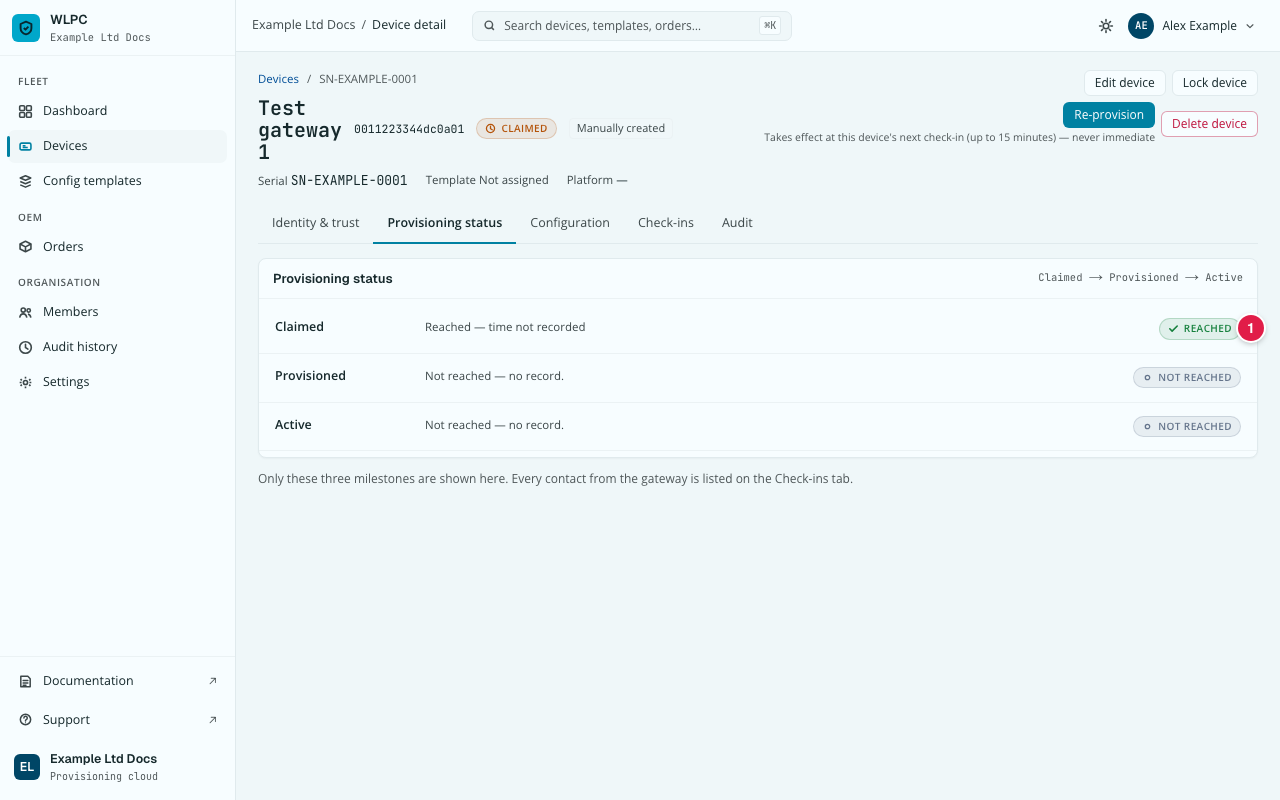
On the Provisioning status tab, the three stages Claimed,
Provisioned and Active. Before the first start only Claimed is
reached (1). A few minutes after the start, Provisioned and then Active
are reached too.
If not
| What you see | What it means | What to do |
|---|---|---|
Still CLAIMED after 10 minutes |
The gateway has not reached the platform, or was refused. | See The device stays CLAIMED. |
PROVISIONED, but not ACTIVE after 10 minutes |
The gateway has its settings, but the agent has not been told that your gateway software is connected to its target platform. | See Device stuck in PROVISIONED. |
Then check that it keeps calling in
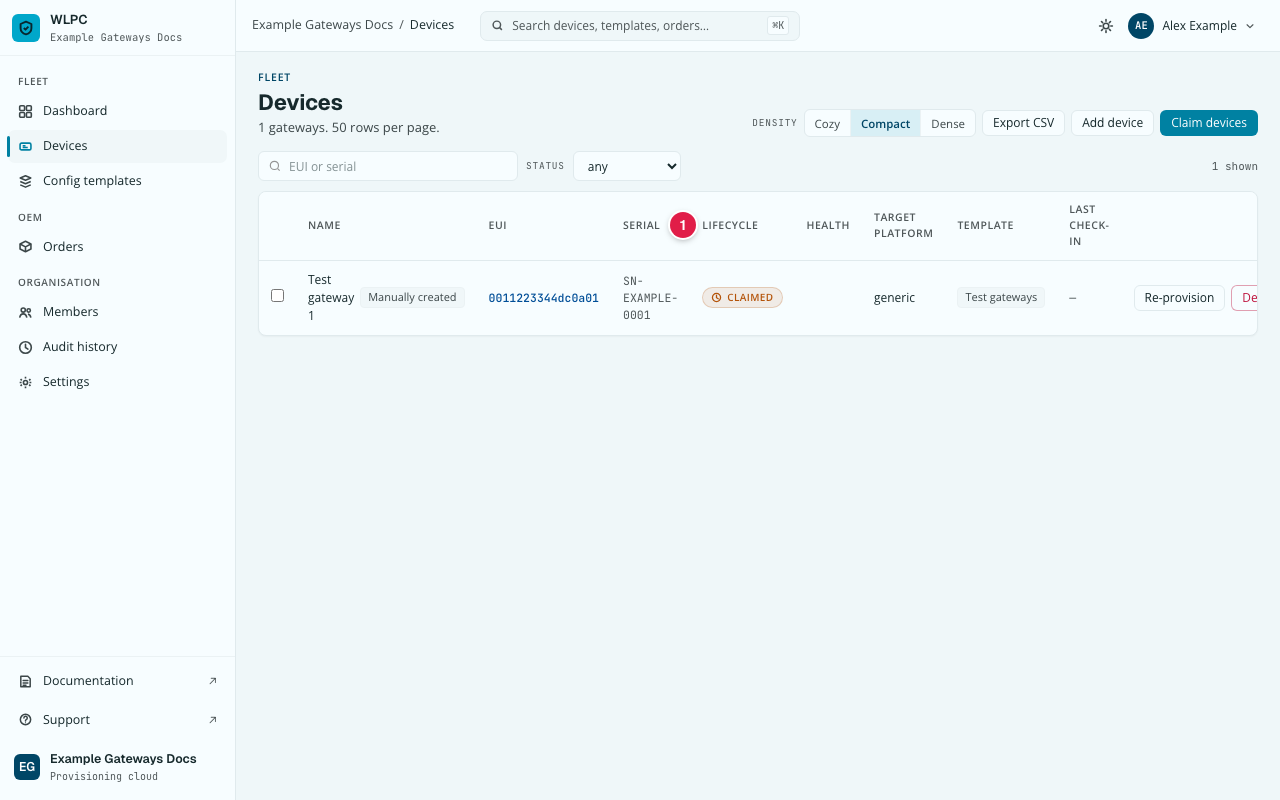
- Open Devices. Look at the LIFECYCLE, HEALTH and LAST CHECK-IN columns of your device (1).
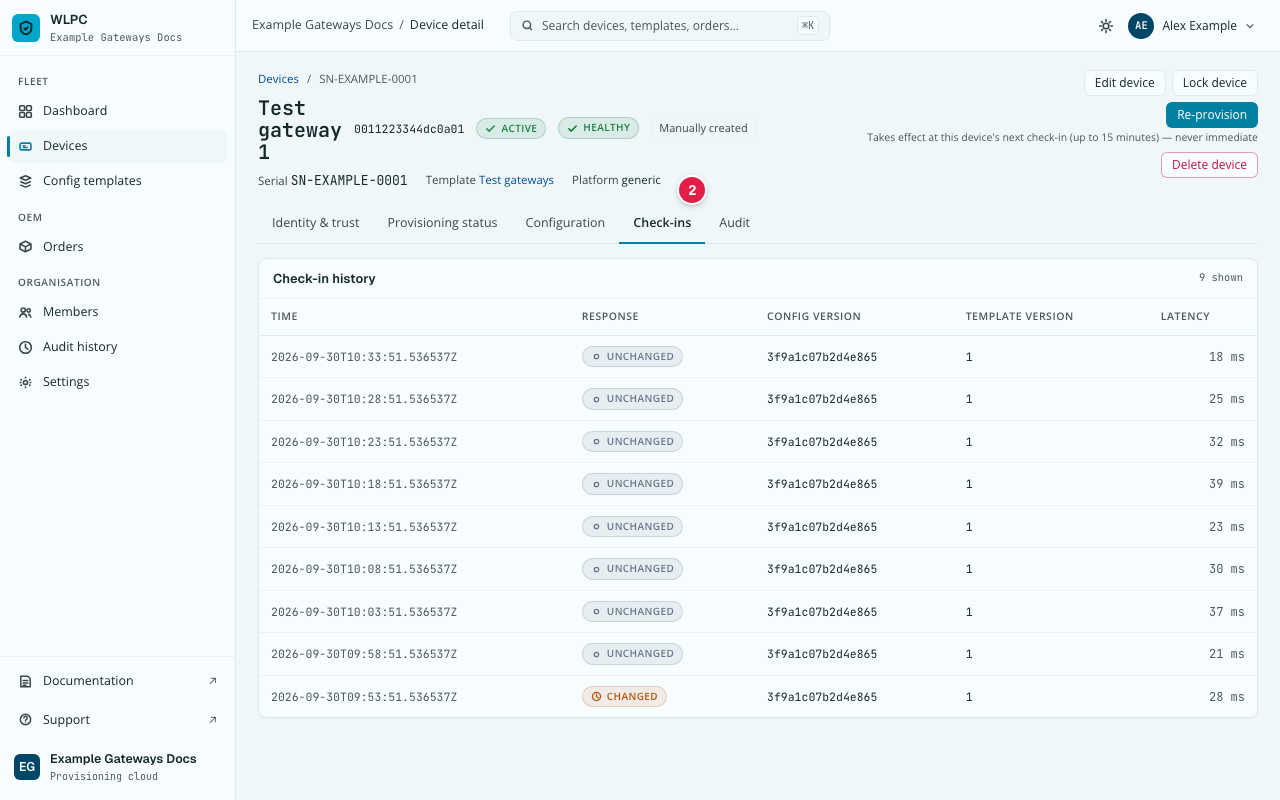
- Click the device's EUI, then the Check-ins tab (2).
You should see LIFECYCLE ACTIVE, HEALTH HEALTHY, and a LAST
CHECK-IN (UTC) no older than the check-in interval (one hour by default). The
Check-ins tab has one row per call: CHANGED when the gateway fetched new
settings, UNCHANGED when there was nothing new. Rows older than 48 hours are
summed up per day under Before that.
| What you see | What it means | What to do |
|---|---|---|
SILENT |
Nothing has arrived for three check-in intervals (3 hours by default). | Health FAILING or SILENT |
FAILING |
The gateway calls, but cannot prove its identity. | Same page. |
| No health badge | The device has not been set up yet, or has never called in. | Repeat this step. |
Anything else: Troubleshooting. More: Check-ins.