Step 3: Complete your company data
Why this step
Your company data is used for contracts and invoices. If you entered an address when signing up, it is already there. Check it and add what is missing.
You need
- Your company's postal address.
- Optional: your VAT ID.
- The role Org Admin. After signing up, you have it.
Do this
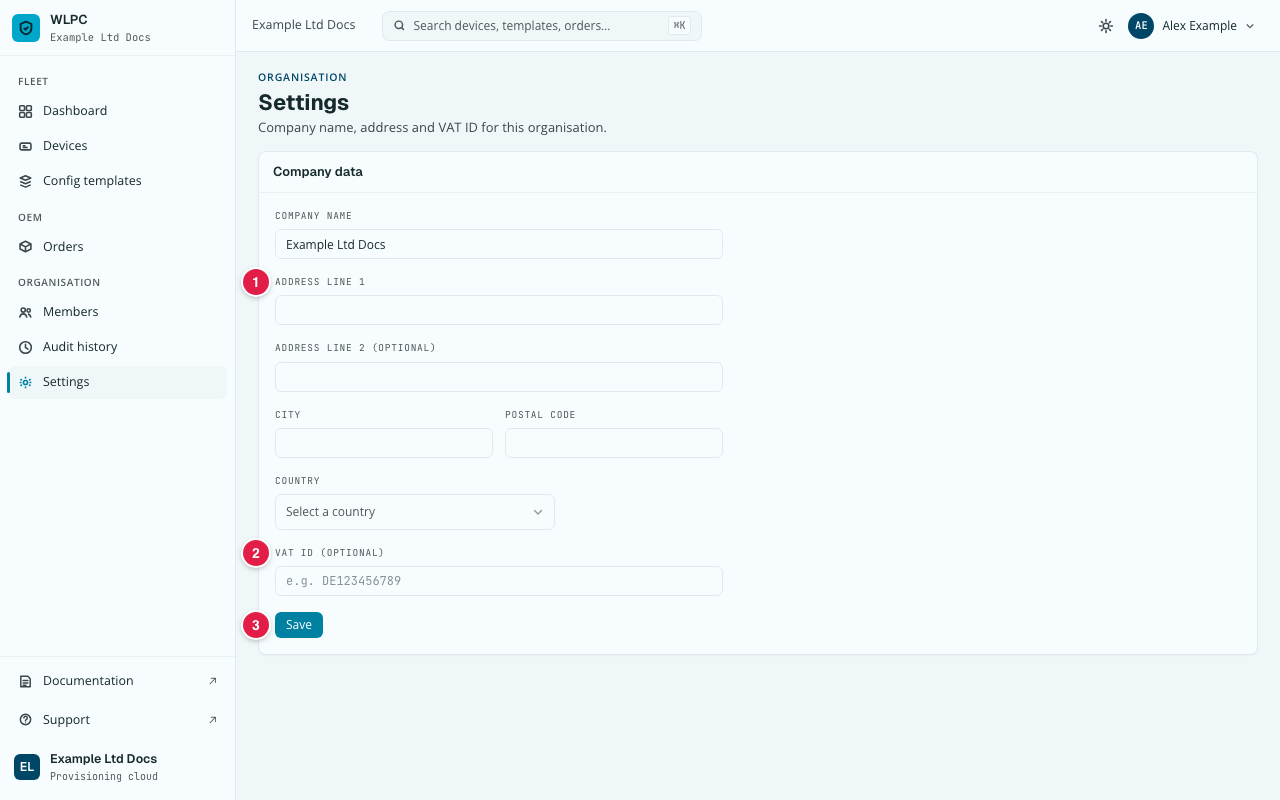
- In the menu on the left, under ORGANISATION, click Settings.
- Check COMPANY NAME, ADDRESS LINE 1, CITY, POSTAL CODE and
COUNTRY (1). Fill in anything that is empty. ADDRESS LINE 1 shows
street and house number from sign-up, street first (for example
Example Road 10); correct the order if your country writes the number first. ADDRESS LINE 2 (OPTIONAL) is for anything that does not fit in line 1. For COUNTRY, open the list and click your country, as in step 2. - Optional: enter your VAT ID (OPTIONAL) (2), for example
DE123456789. - Click Save (3).
You should see
After Save, the message "Saved." and the Company data form with your details. If you entered an address at sign-up, it was already filled in.
If not
| What you see | What it means | What to do |
|---|---|---|
| You cannot change the fields, or saving is refused | Your role is not Org Admin. | Ask an Org Admin of your organisation to change it (step 4). |
| An error appears next to a field after Save | The value has the wrong format, for example a VAT ID with spaces. | Correct the value as the message says and click Save again. |
| You want to remove the address entirely | — | Click Clear address, then Save. |