Step 4: Invite colleagues and choose their roles
Why this step
So colleagues can work with you, each with their own login. The role decides what each person may do. You can skip this step if you work alone.
You need
- Your colleague's email address.
- The role you want to give them:
- Org Admin: may do everything, including managing members.
- Editor: may create templates, add devices by hand and claim devices, but not change an existing device's identity or manage members.
- Viewer: may only look.
- The role Org Admin.
Do this
- In the menu, under ORGANISATION, click Members.
- Click Invite (1).
- Enter the EMAIL (2) and choose the ROLE (3). It is preset to Editor. Choose Org Admin only for people who must manage members and company data; choose Viewer for people who only look.
- Click Send invite (4).
- Your colleague gets an email "You've been invited to join …" and clicks the link in it. The link works once, for 7 days.
You should see
The invitation dialog with email and role.
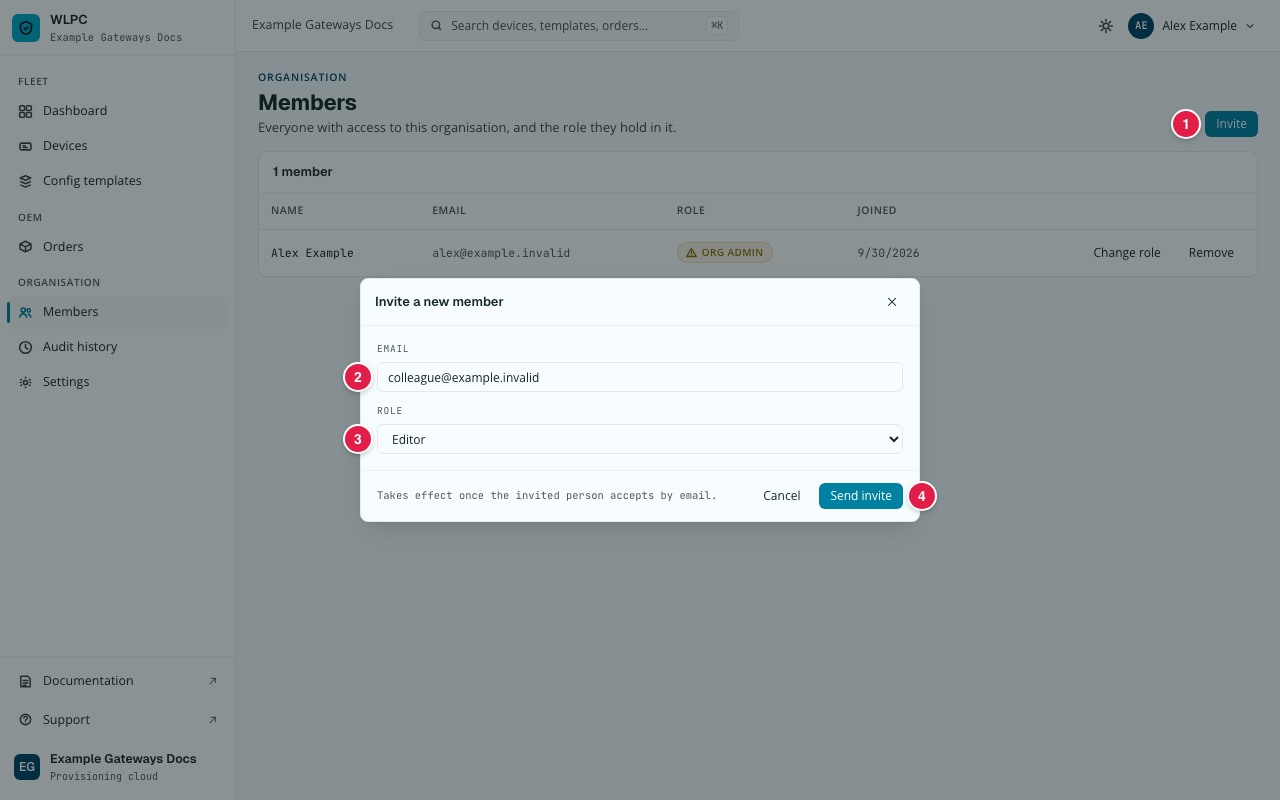
After Send invite, the invitation appears under "pending invitation", with the role and the date the link expires. Revoke cancels it. Once your colleague has accepted, they appear in the list of members with their role. You can change it later with Change role or take their access away with Remove.
If not
| What you see | What it means | What to do |
|---|---|---|
| There is no Invite button, or the invitation is refused | Your role is not Org Admin. | Ask an Org Admin to invite your colleague. |
| Your colleague received no email | Delayed, in the spam folder, or a typo in the address. | Ask them to look in their spam folder. If the address was wrong, invite the correct address. |
| Your colleague's link has expired | More than 7 days have passed, or the link was already used. | Invite them again. |