Step 6: Add a device
Why this step
The platform only sets up gateways it knows. Here you tell it which gateways are yours. There are two ways:
- Add a device yourself: for a single gateway you have in front of you, for example a test gateway.
- Claim devices from an order: for gateways you ordered from the manufacturer, which come with an order number or claim codes.
You need
- For Add a device yourself: the gateway's EUI and serial number from its label, and its AK fingerprint. No fingerprint yet? Do step 7 first and switch the gateway on once; support can then read it out for you. Both ways to get it: Register a real gateway.
- For Claim devices from an order: the claim codes or the order number.
- The role Org Admin or Editor.
Do this
To add a device yourself:
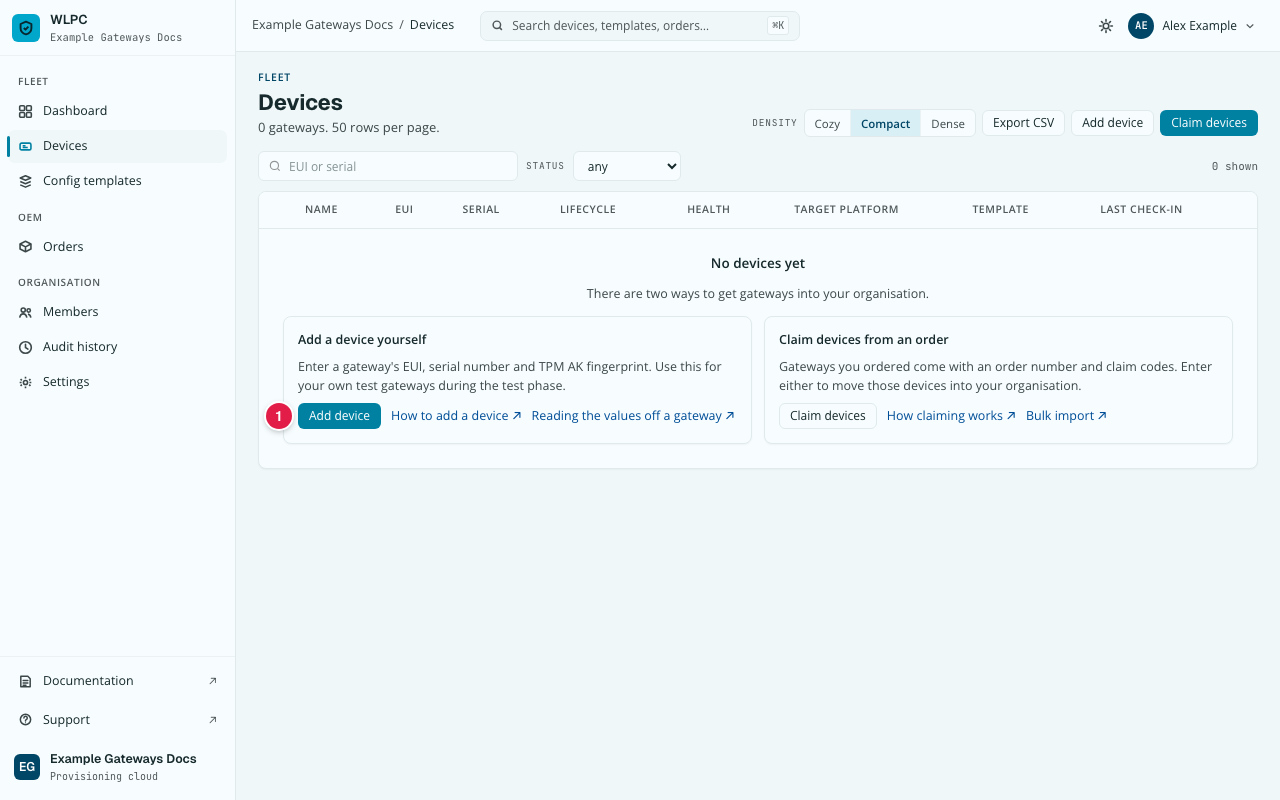
- In the menu, under FLEET, click Devices.
- Click Add device (1).
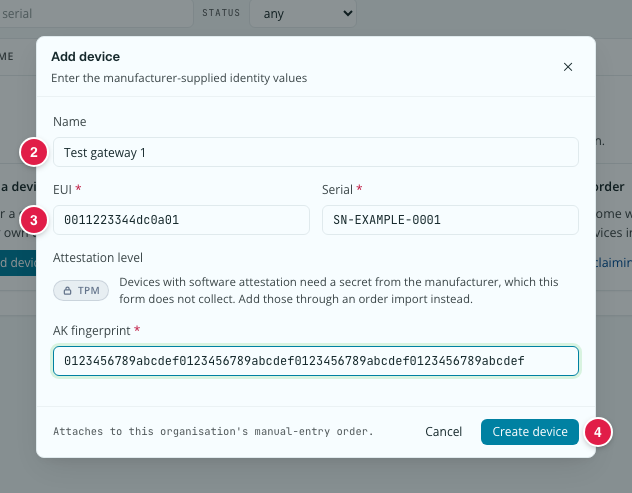
- Enter the EUI *, Serial * and AK fingerprint * (3), and optionally a Name (2). Every field is explained in Add device.
- Click Create device (4).
To claim devices from an order instead: Devices → Claim devices, then paste the claim codes or enter the order number, see Bulk import and claim.
Then give the device the template from step 5, see Assign template.
You should see
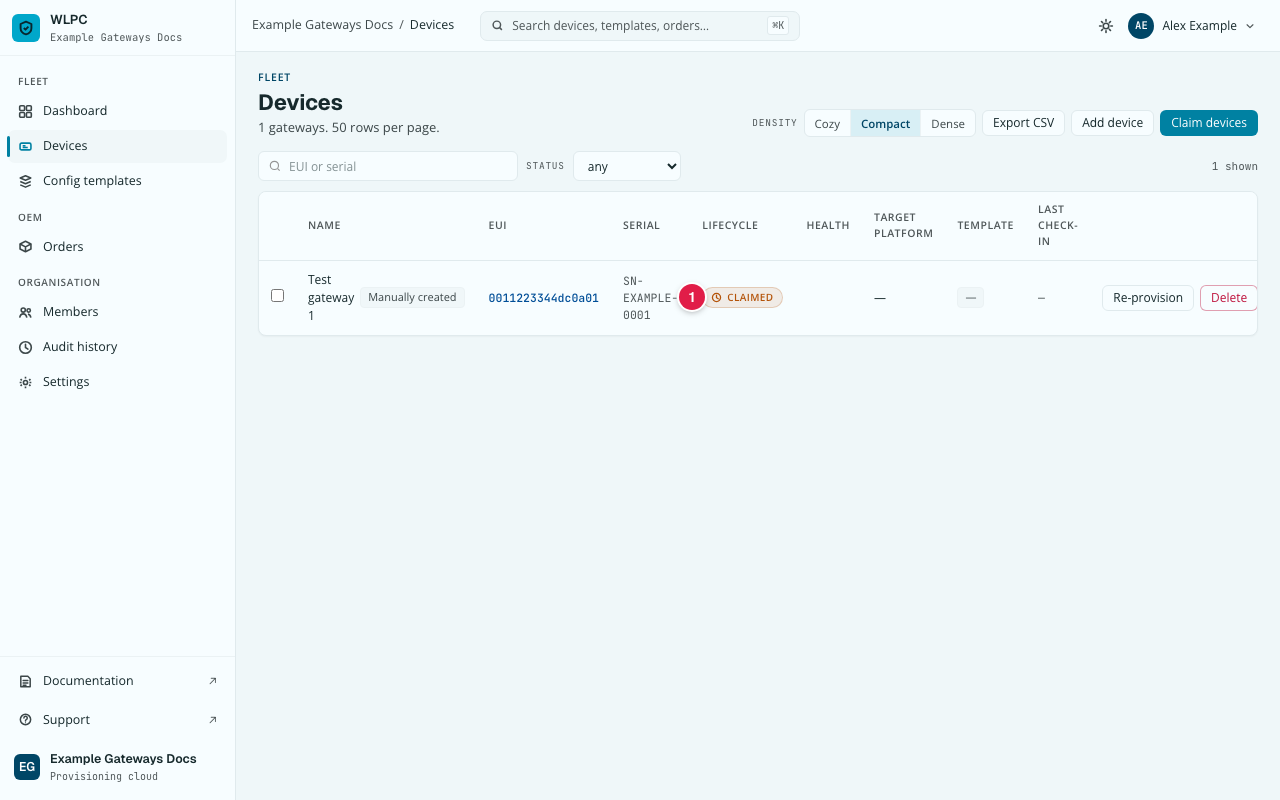
The device in the list with the badge Manually created and the status
CLAIMED (1). CLAIMED means: the device is yours, the gateway has not been
set up yet. That is correct until step 8. After assigning, the device page
shows your template's name next to Template.
If not
Find the message you see under Add device, Common errors, Bulk import and claim, Common errors or Assign template.